SETTINGS
Topaz, Standard V2: upscale to 4K with light sharpening and noise reduction, keeping the original look natural.
Improve image quality with Higgsfield's online AI image upscaler. Upload a photo and upscale it up to 4K with ByteDance or use Topaz for scale-based enhancement.
Partnering with global industry leaders to power your creativity output







Upscale images with AI to refine sharpness, reduce noise, and enhance detail. Choose the engine and settings that suit your source, from portraits to older or low-resolution photos.
Give older, smaller, or low-quality photos a clearer finish with AI upscaling and image cleanup. Choose ByteDance for output up to 4K or Topaz for scale options suited to your source, then adjust the enhancement settings.
Restore Your Image
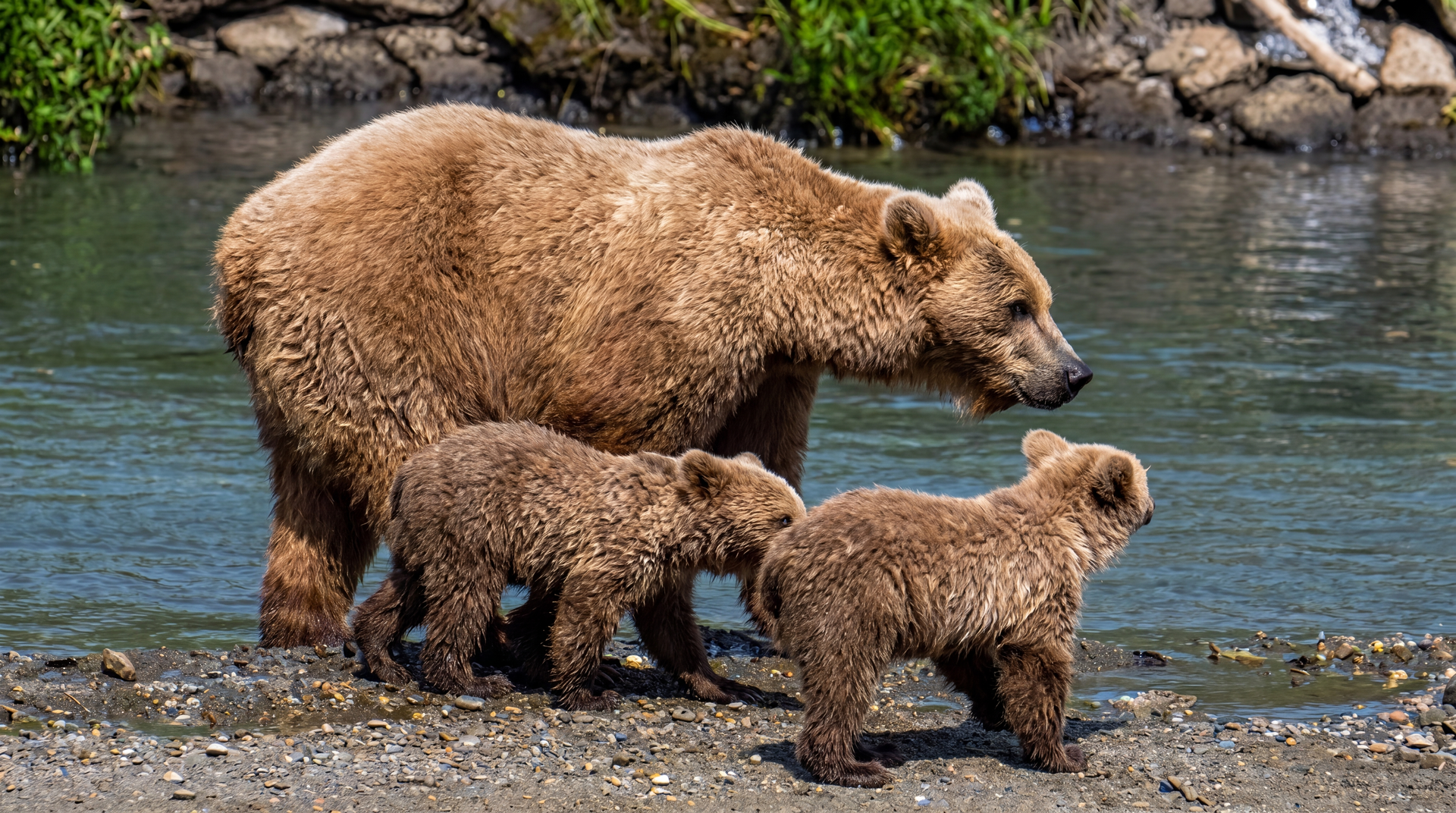
Give older, smaller, or low-quality photos a clearer finish with AI upscaling and image cleanup. Choose ByteDance for output up to 4K or Topaz for scale options suited to your source, then adjust the enhancement settings.
Restore Your ImageReduce noise, rebuild detail with Topaz Generative, or choose a preset suited to the image.
Enhance Your Image
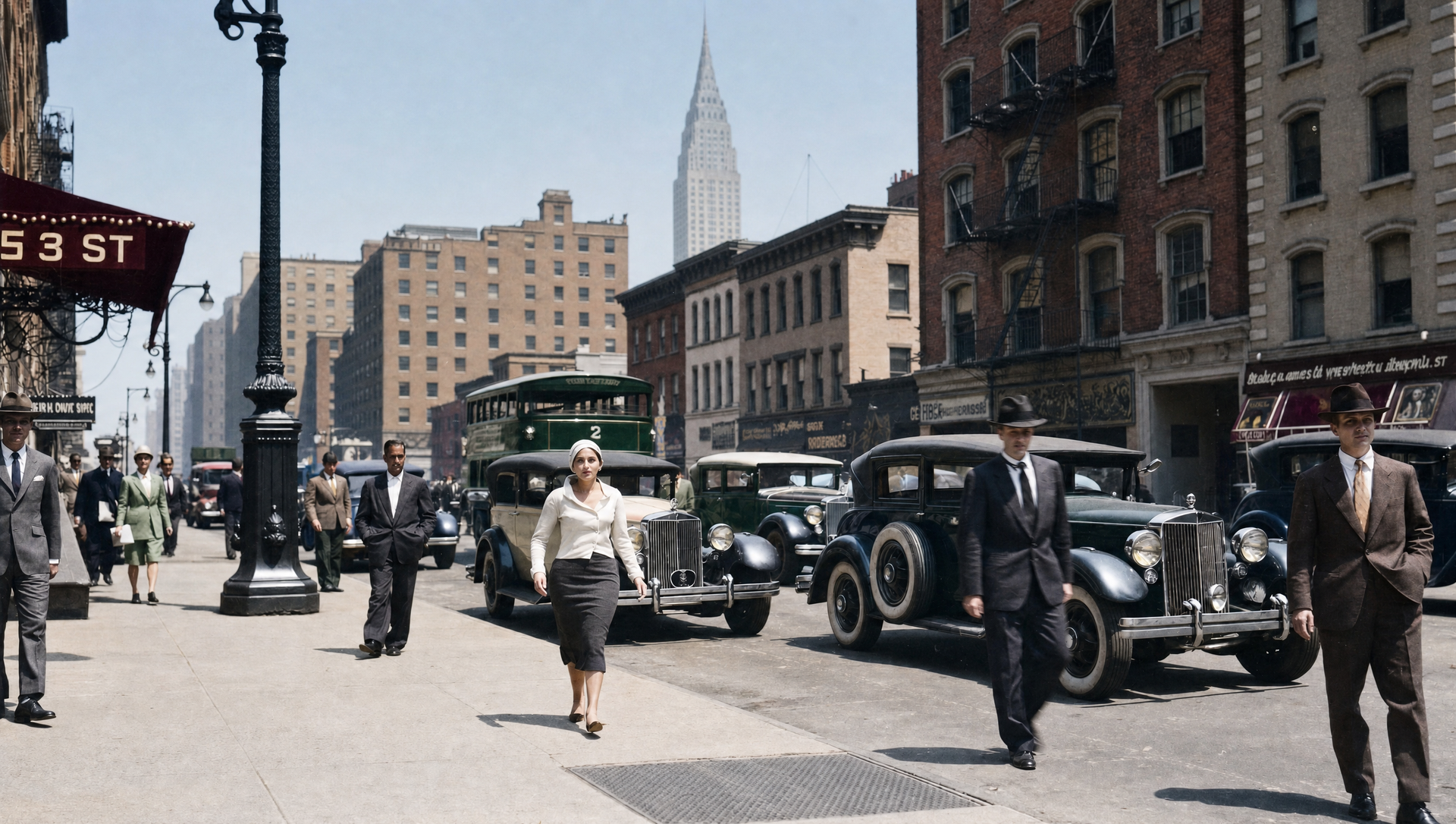
Reduce noise, rebuild detail with Topaz Generative, or choose a preset suited to the image.
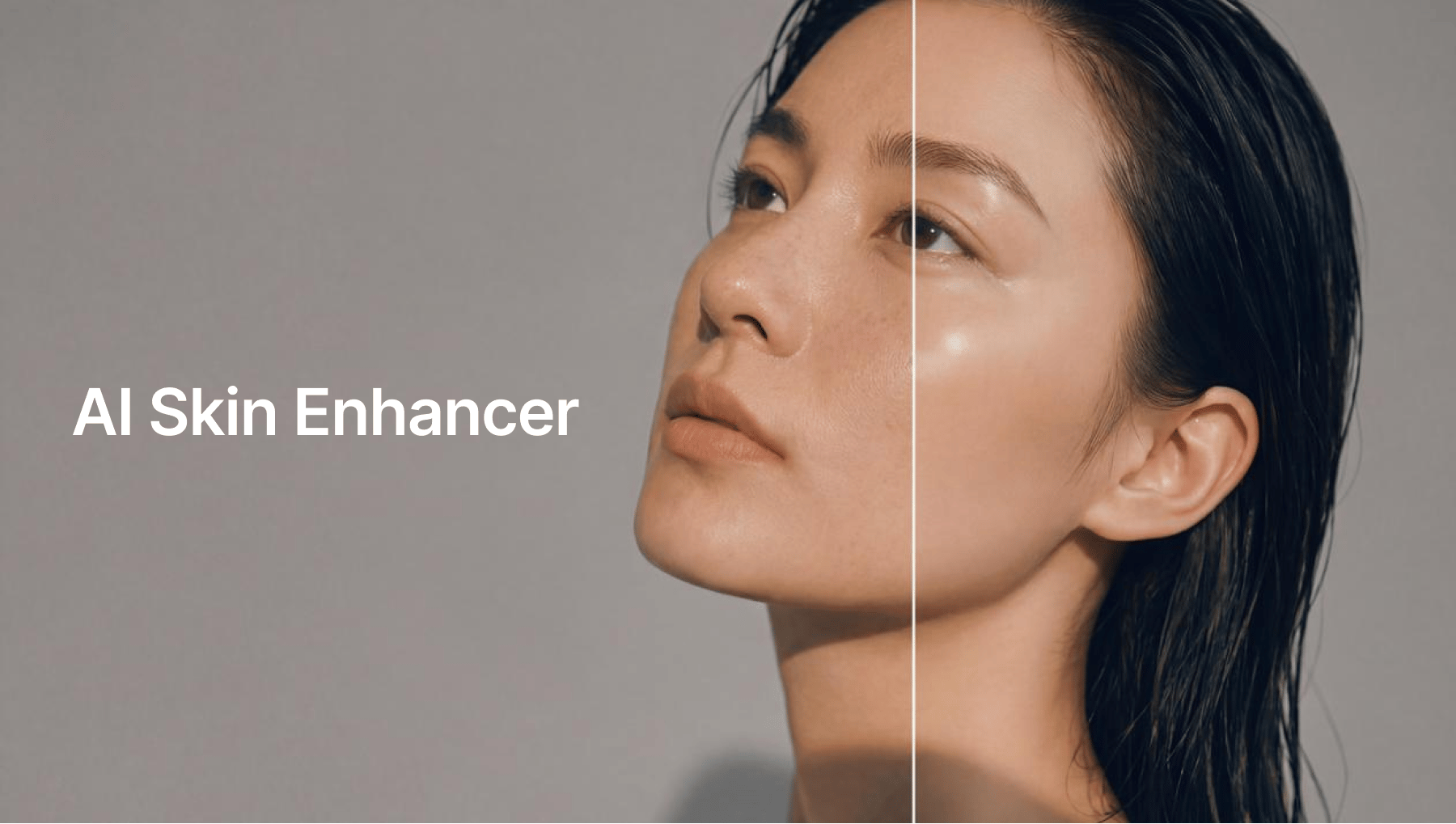
Enhance Your ImageAdjust sharpness to define edges and use face enhancement to refine facial details.
Upscale Your Image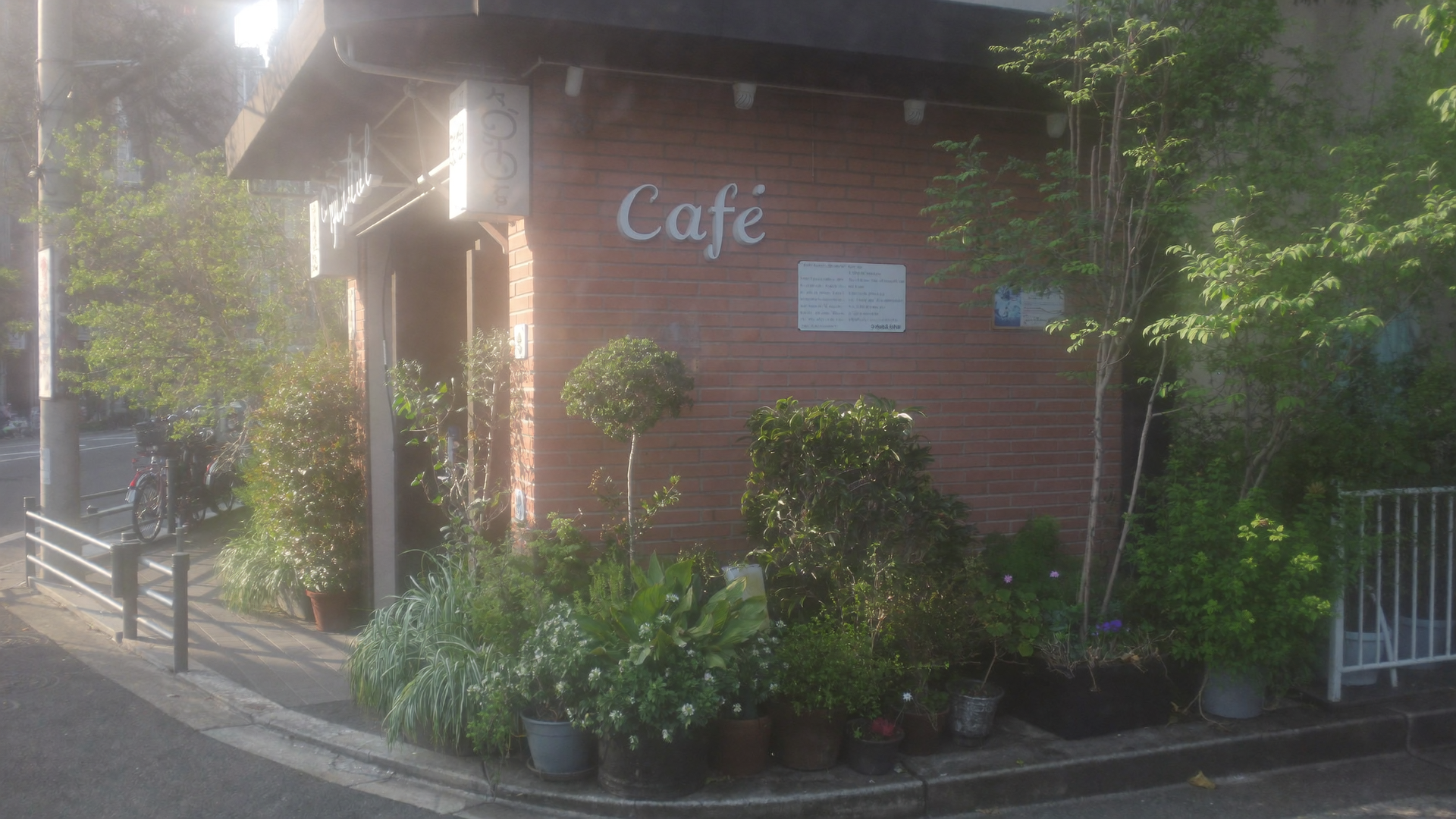
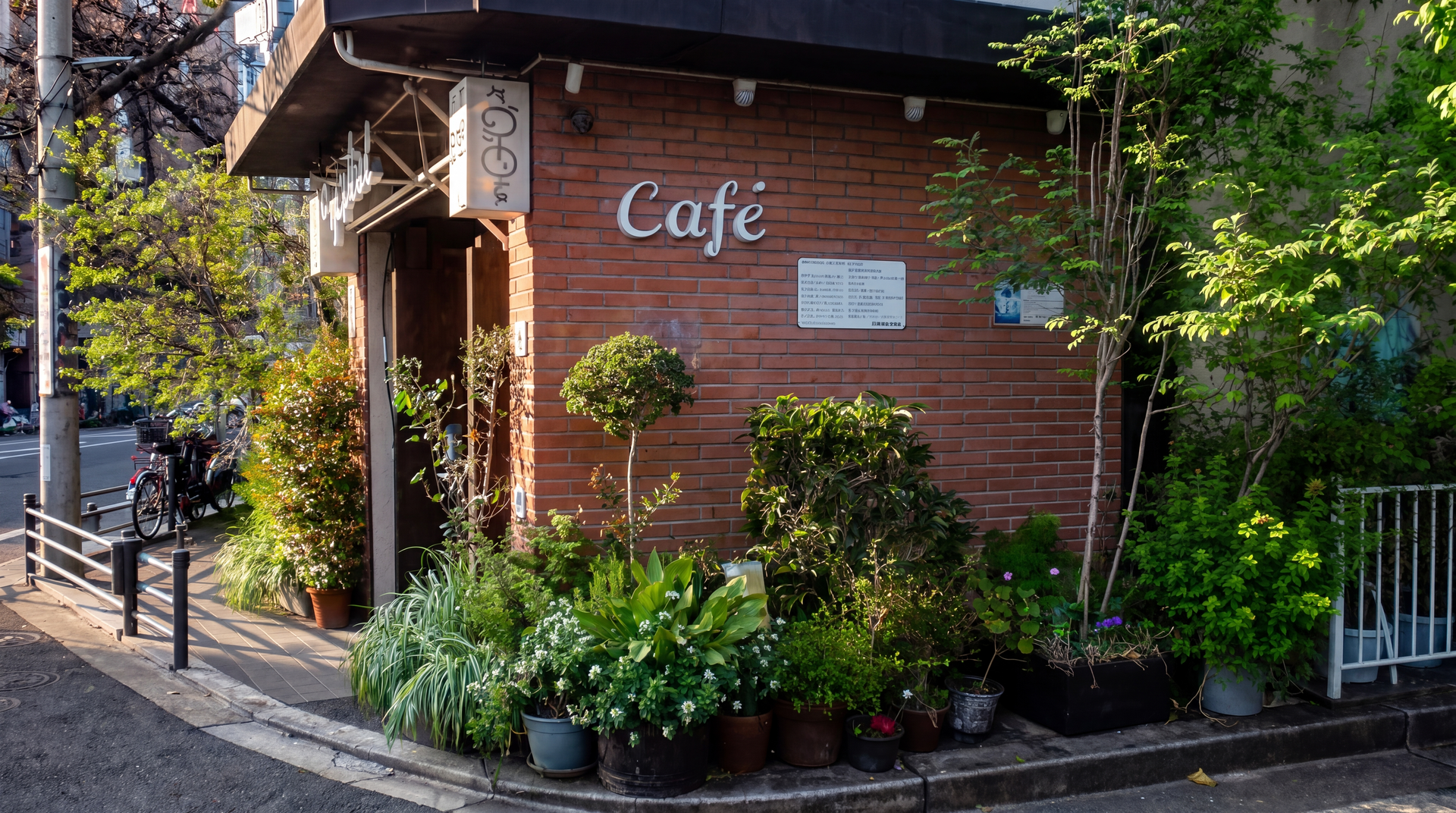
Adjust sharpness to define edges and use face enhancement to refine facial details.
Upscale Your ImageExplore more ways to prepare images with Higgsfield’s online AI image upscaler. Upload a photo, then choose the settings and presets that fit the image.
Use denoise setting by Topaz to reduce grain and image noise. Adjust it to suit the source.
For older or degraded photos, use Topaz Generative to rebuild image detail with AI. Pair it with cleanup settings to shape the result.
Sharpen images to refine edges and the image’s overall finish. For images with text or branding, choose the Text Refine preset.
Topaz offers scale factors up to 16x for smaller source images. Available options depend on the image.
Choose Topaz at 1x to keep the original image dimensions while sharpening the image and reducing noise.
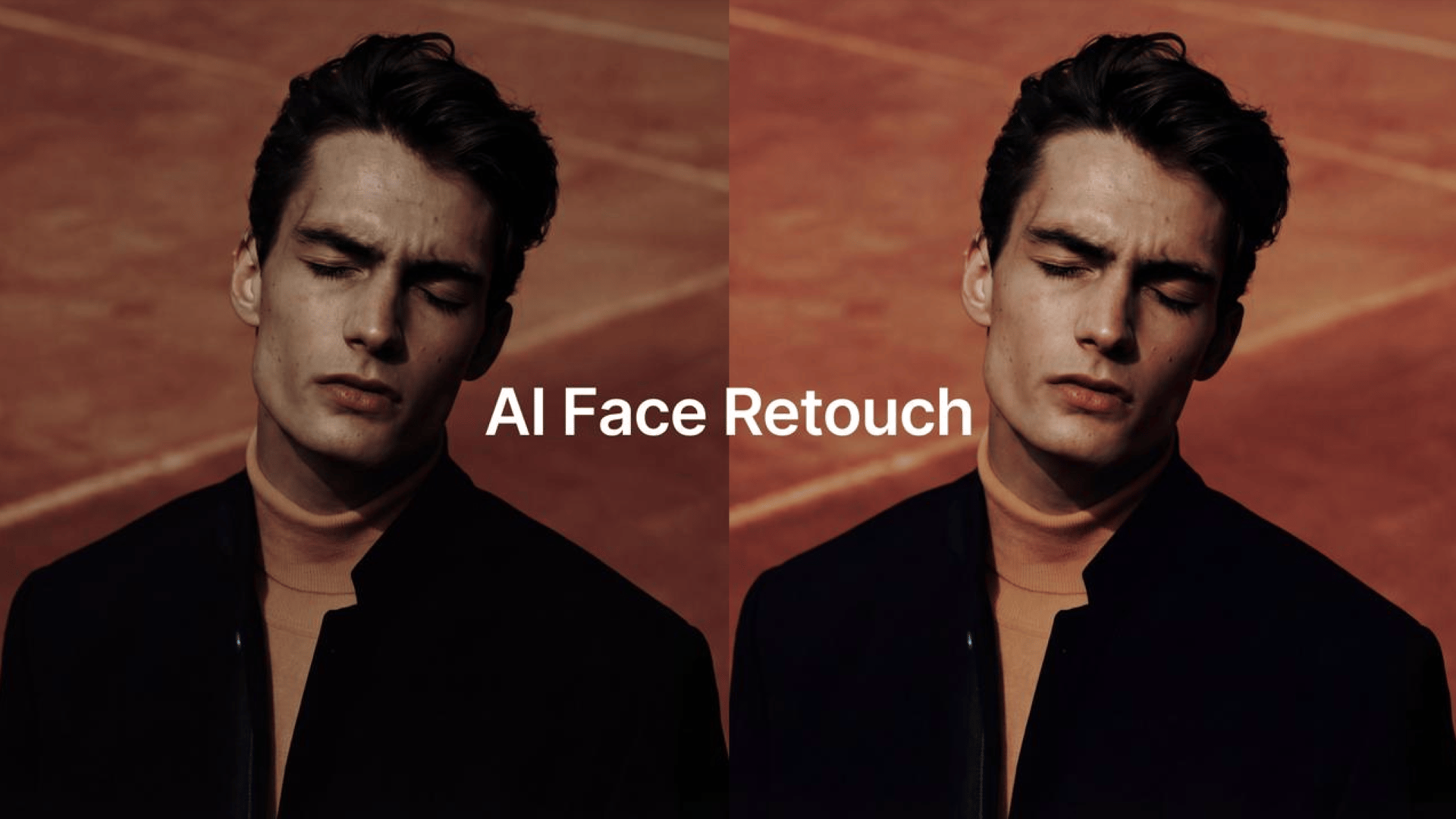
Adjust facial enhancement with two controls. Creativity sets the level of artistic enhancement, while Strength sets the effect’s intensity. Higher values may make faces more stylized or changes more pronounced.
Choose ByteDance Upscale for up to 4K output. Select 2K or 4K based on where you plan to display or use the image.
Choose from the Standard, High Fidelity v2, Text Refine, Art & CG, or Low res presets to match the upscaling settings to your image, from detailed visuals and text to CGI and low-resolution graphics.
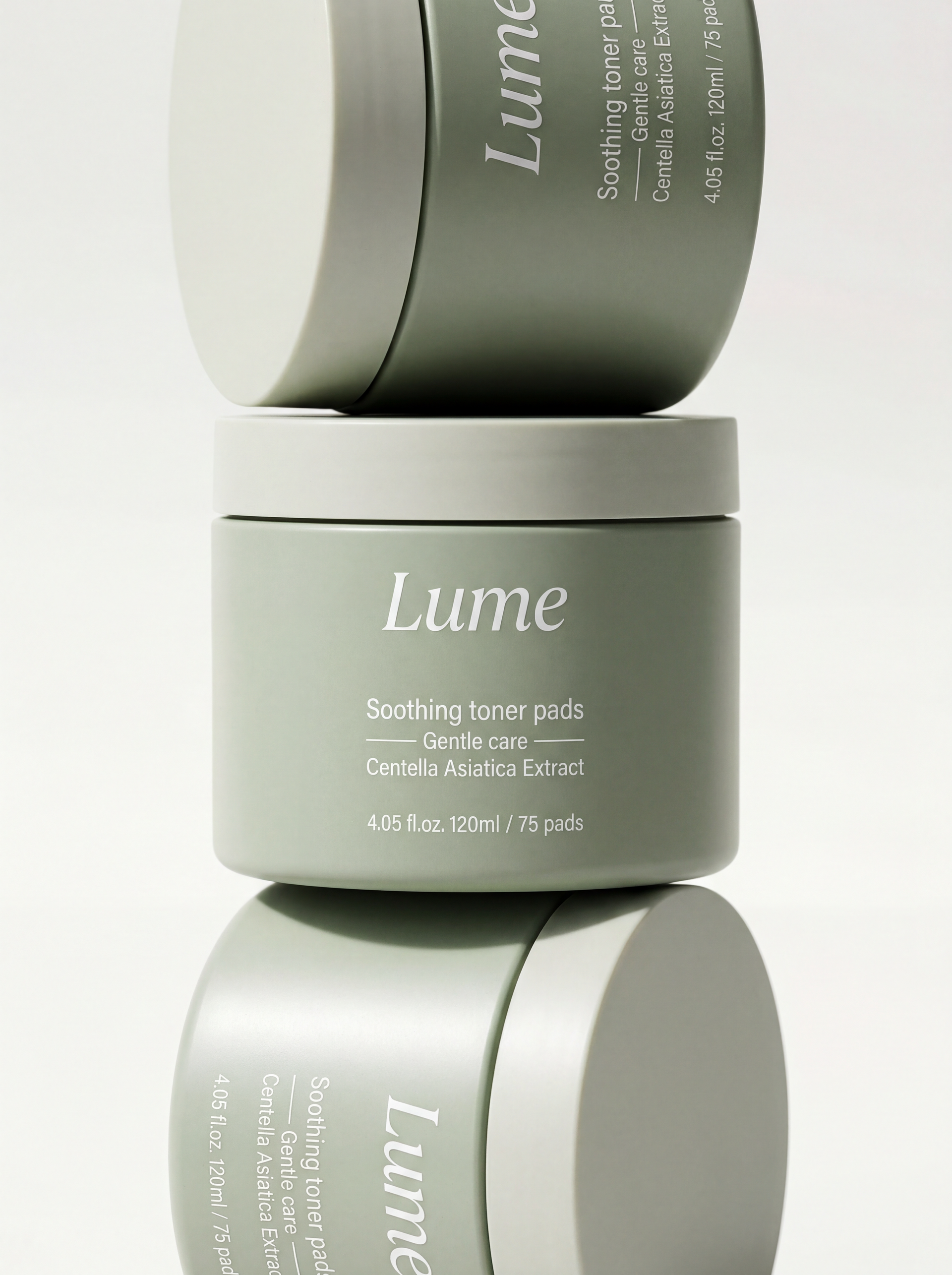
Upscale product photos for online stores and catalogs so customers can view them more clearly at larger sizes.
Prepare images for larger layouts, such as posters, banners, and packaging mockups. Choose the output based on the source and intended use.
Topaz enlarges images by applying a scale factor rather than setting custom pixel dimensions. Available factors depend on the source and can create larger files for layouts, screens, or zoomable views.
Download an image you generated on Higgsfield, then upload it to the Upscale tool to enlarge or enhance it.
Use this workflow to refine an existing image.
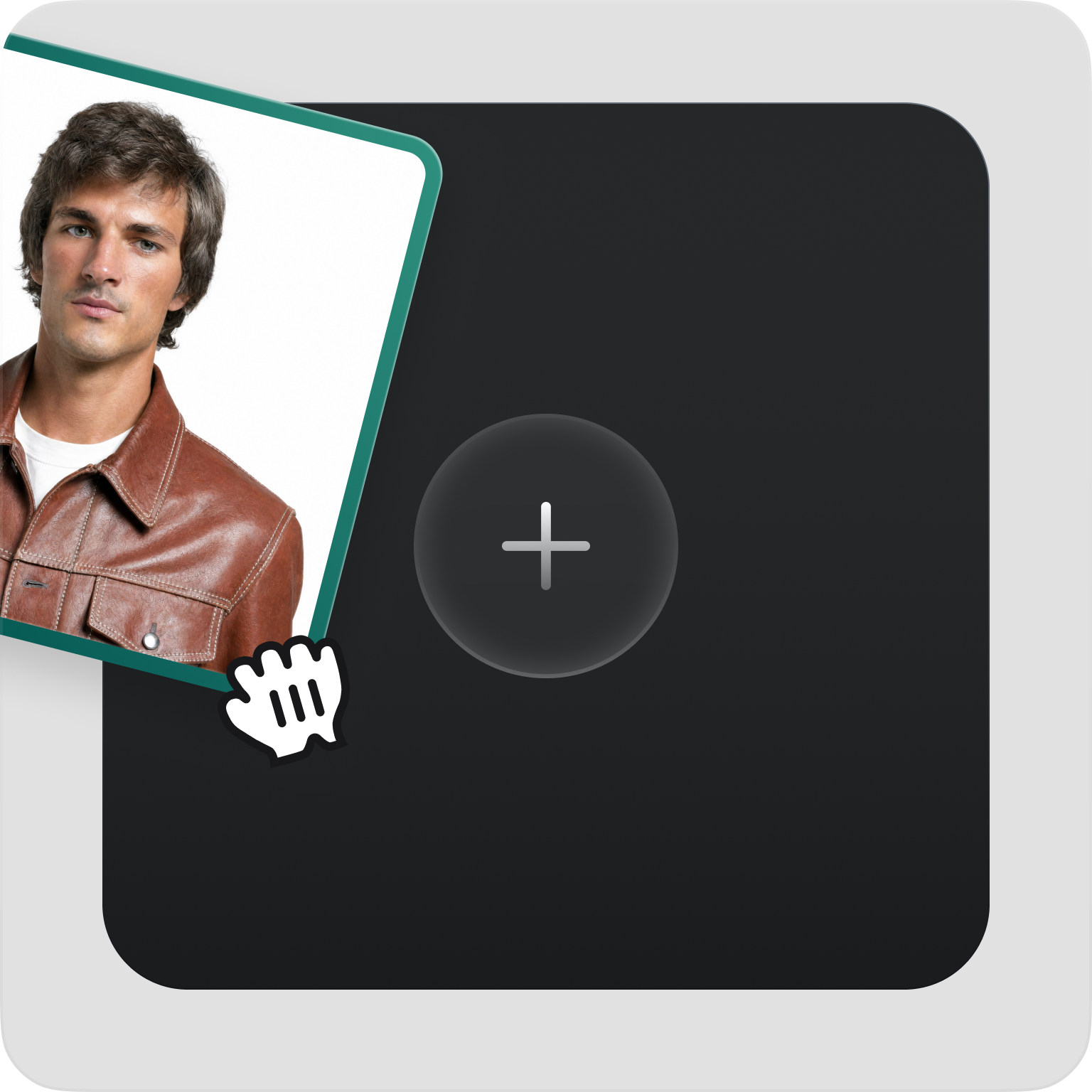
Upload the photo or picture you want to upscale, whether it’s old, small, or low quality.
Select ByteDance for up to 4K output, or Topaz to choose an available scale factor. To rebuild image detail with AI, select Topaz Generative.
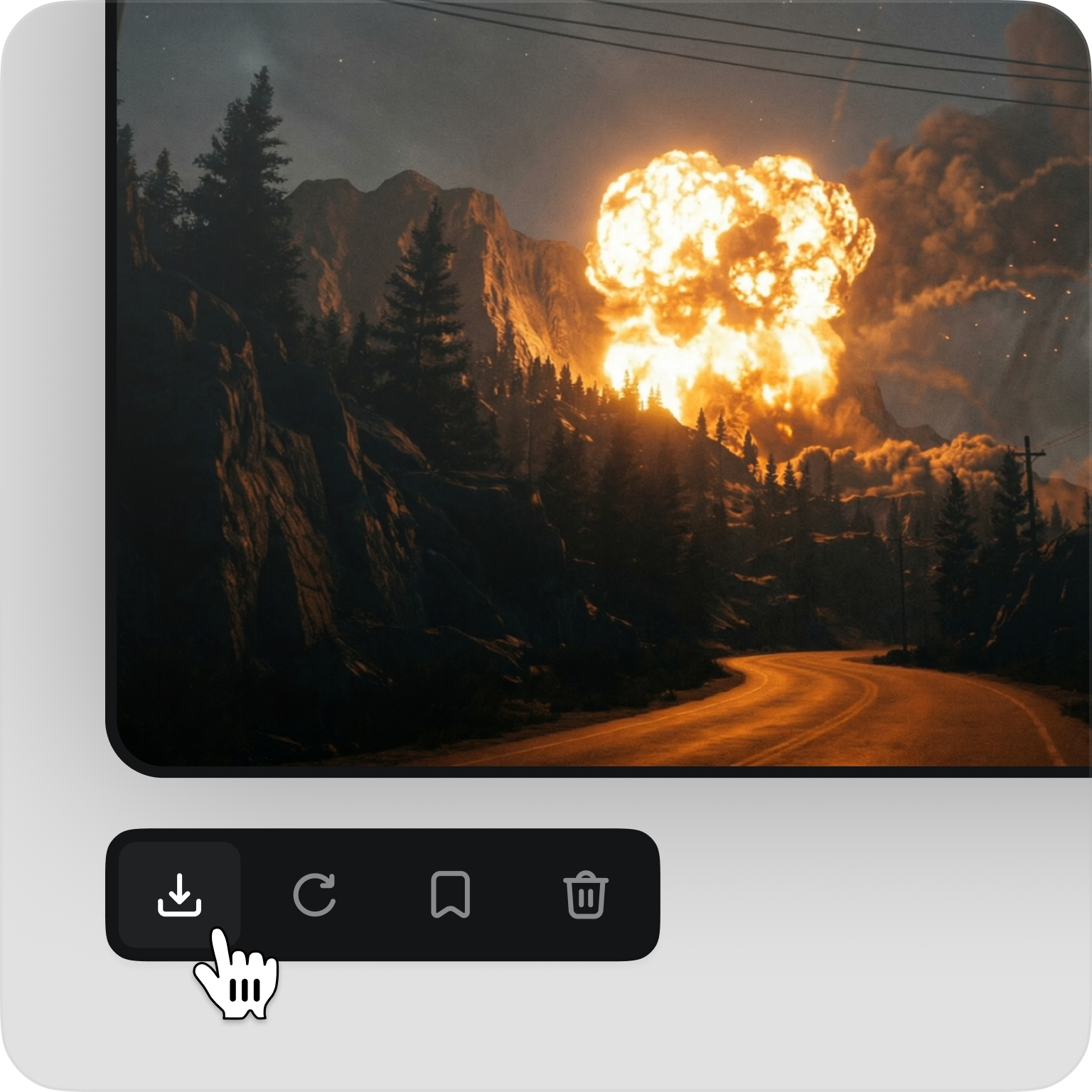
Once the upscale is complete, download the image to use in your next project or share online.
Select the engine that fits your image and the kind of upscaling you need. Prepare photos and graphics for sharing, display, or design work. Match the result to your source and how you plan to use it.
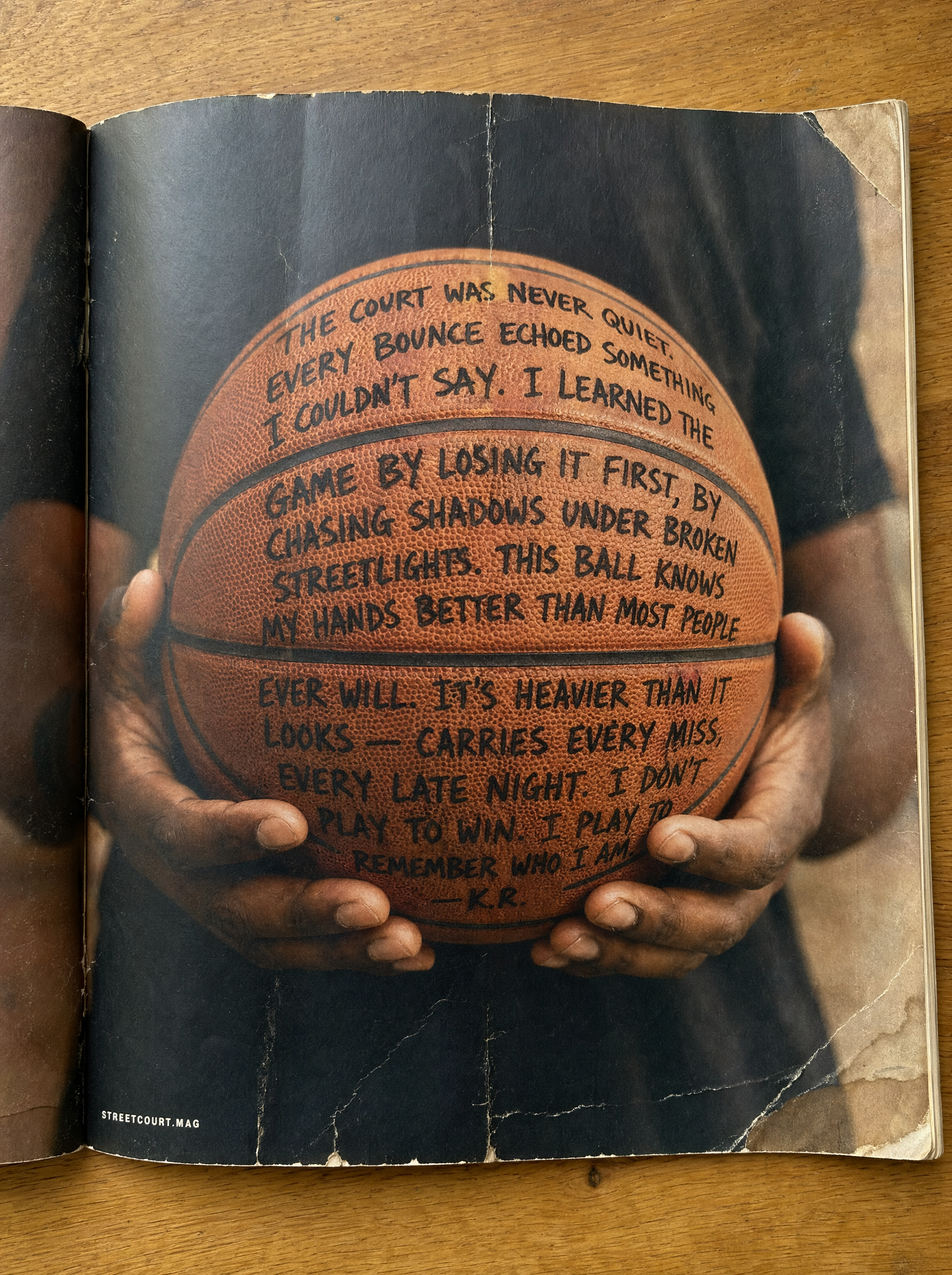
Choose ByteDance when you need up to 4K output, such as preparing an image for a high-resolution display or layout.
Upscale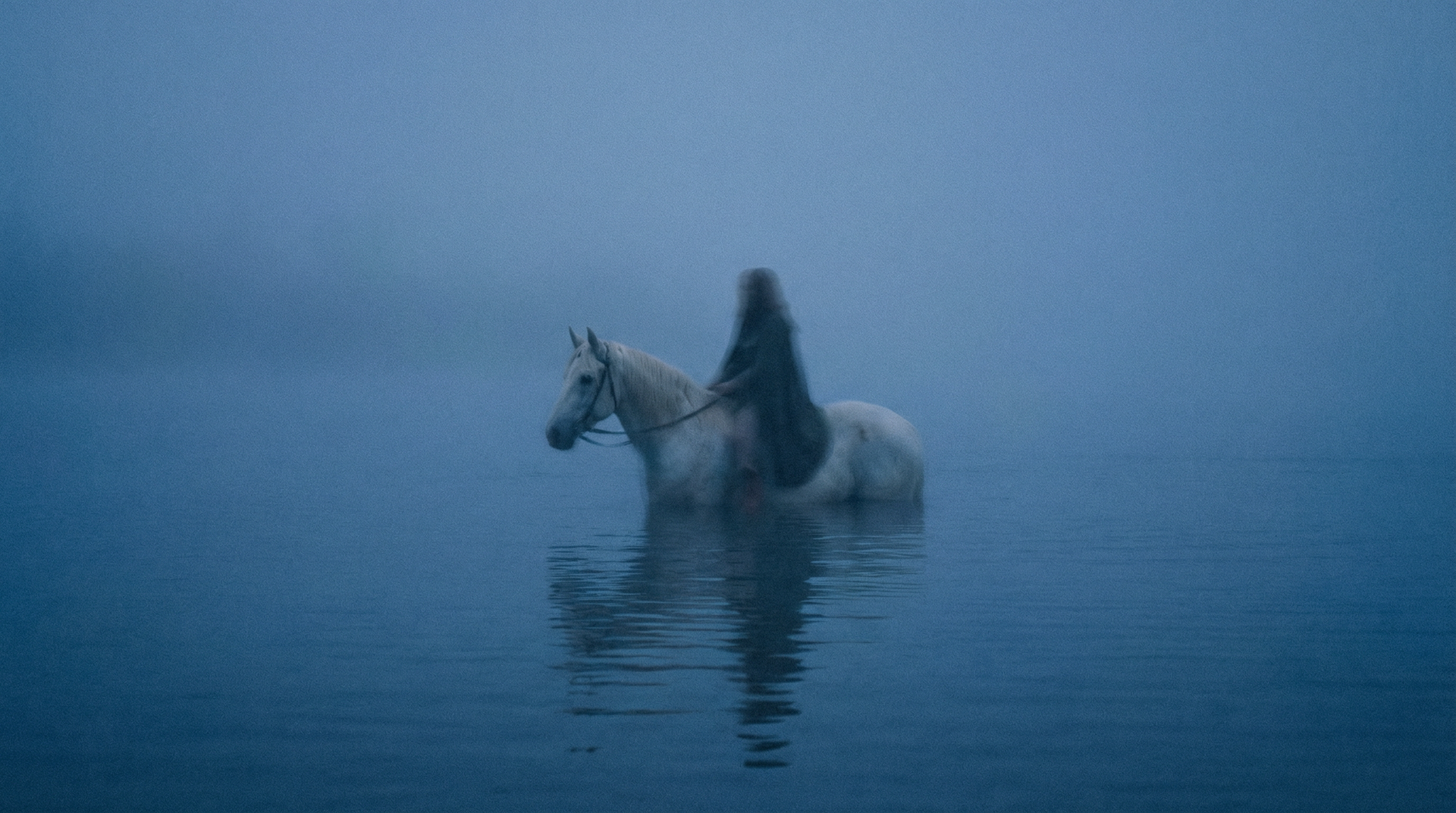
Use AI to rebuild image detail as you upscale. This engine is suited for images that need detail reconstruction.
Upscale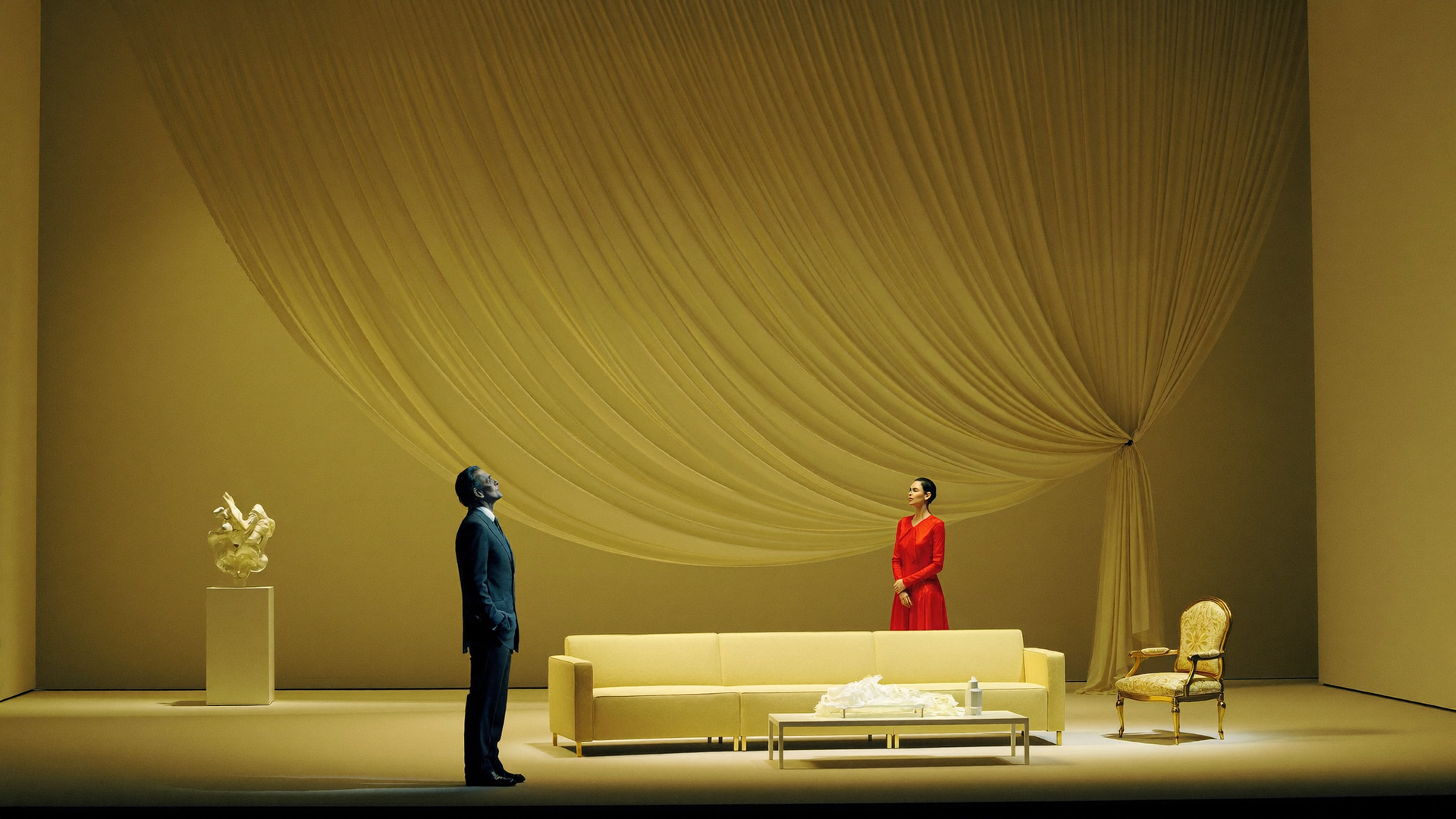
Adjust sharpness, denoise, grain, and face enhancement, and choose from the available presets to make your source image clearer.
UpscaleUpscale family photos, product images, and campaign visuals for different projects. Higgsfield is the generative platform for creative production, helping photographers, sellers, designers, and creators work with existing images.

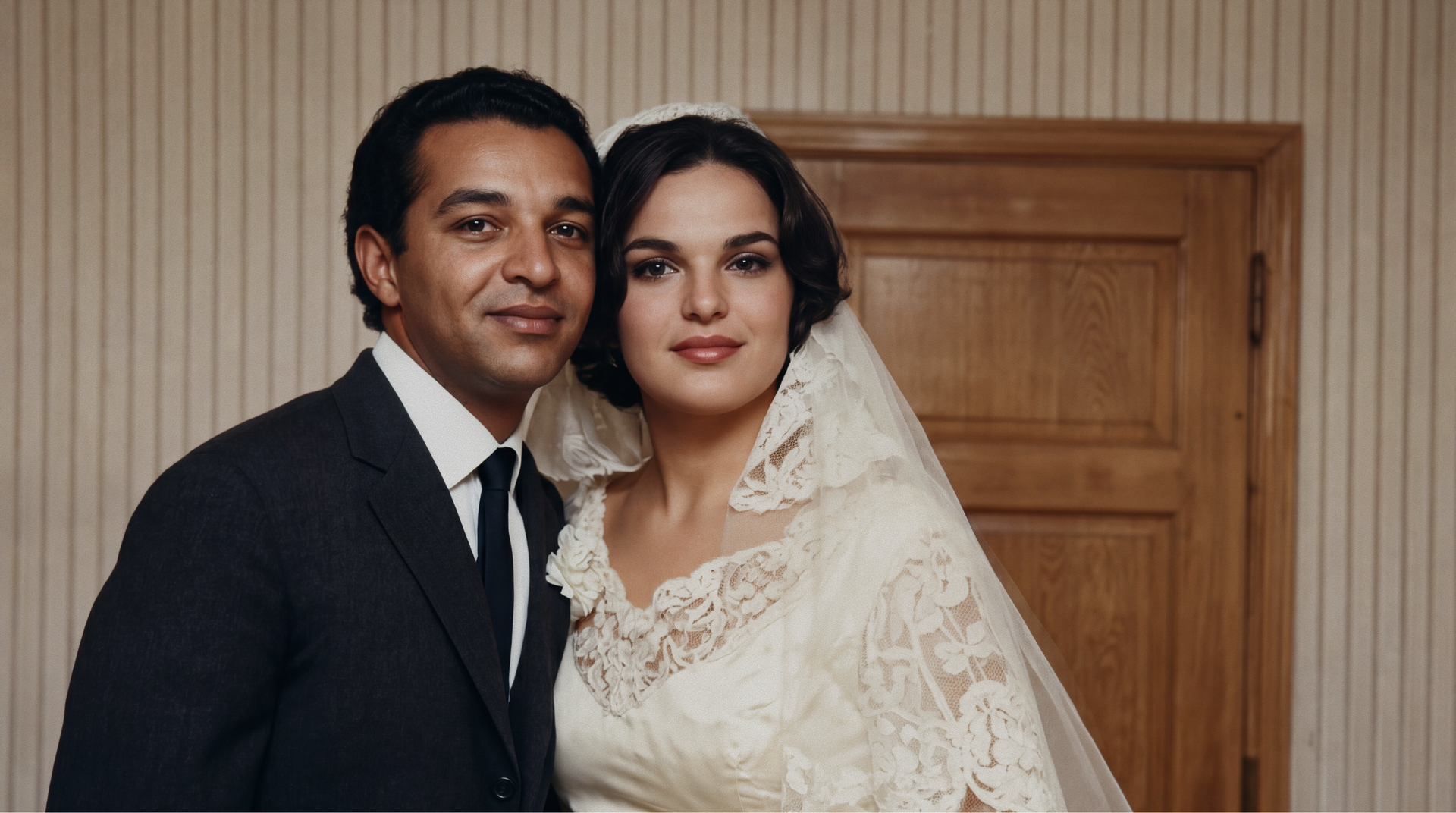
For family archives or genealogy projects, AI photo restoration can help clean up scanned prints before you share them. Topaz’s denoise setting can reduce image noise, while Topaz Generative can rebuild detail with AI. Results depend on the source image.
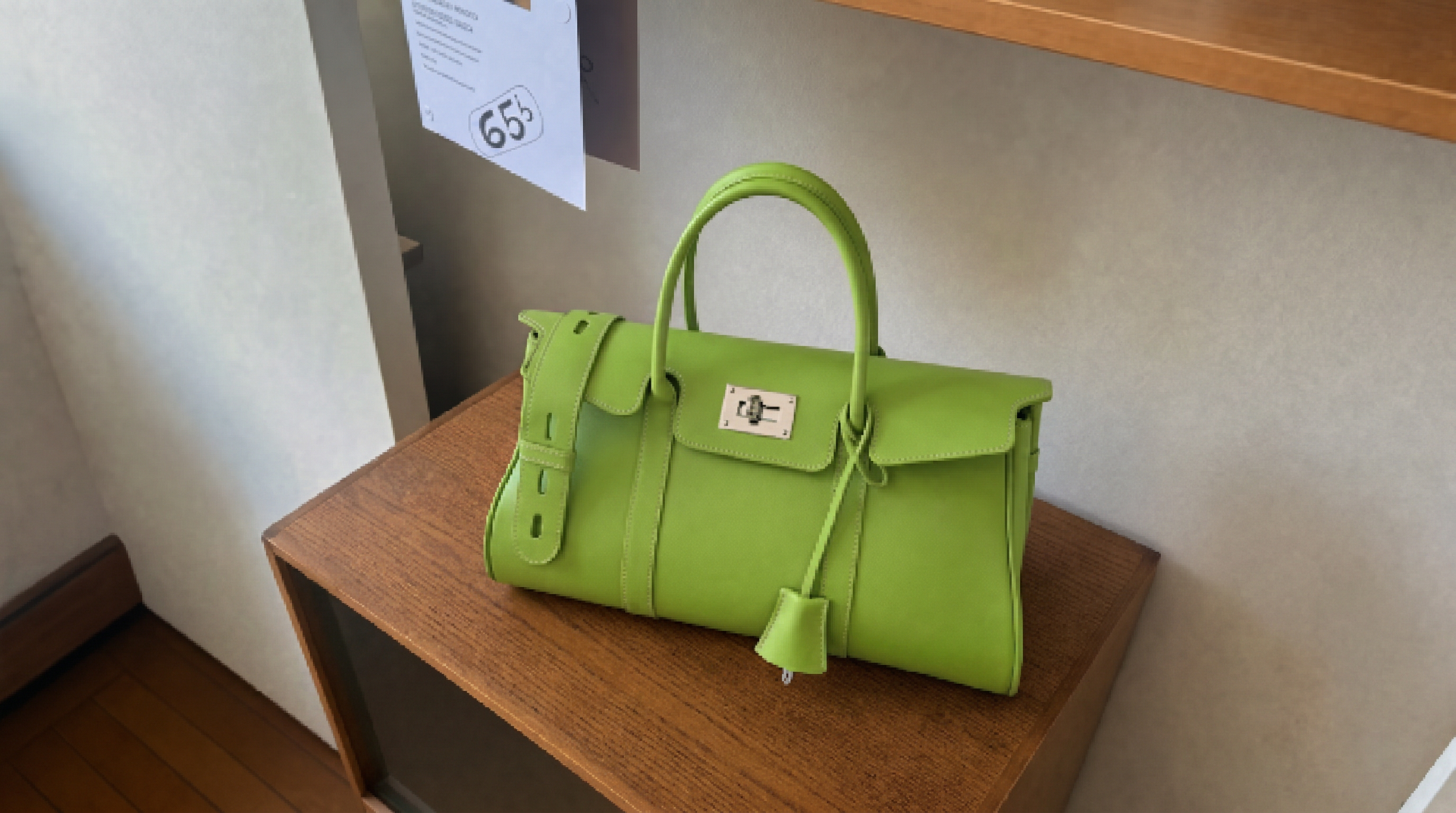
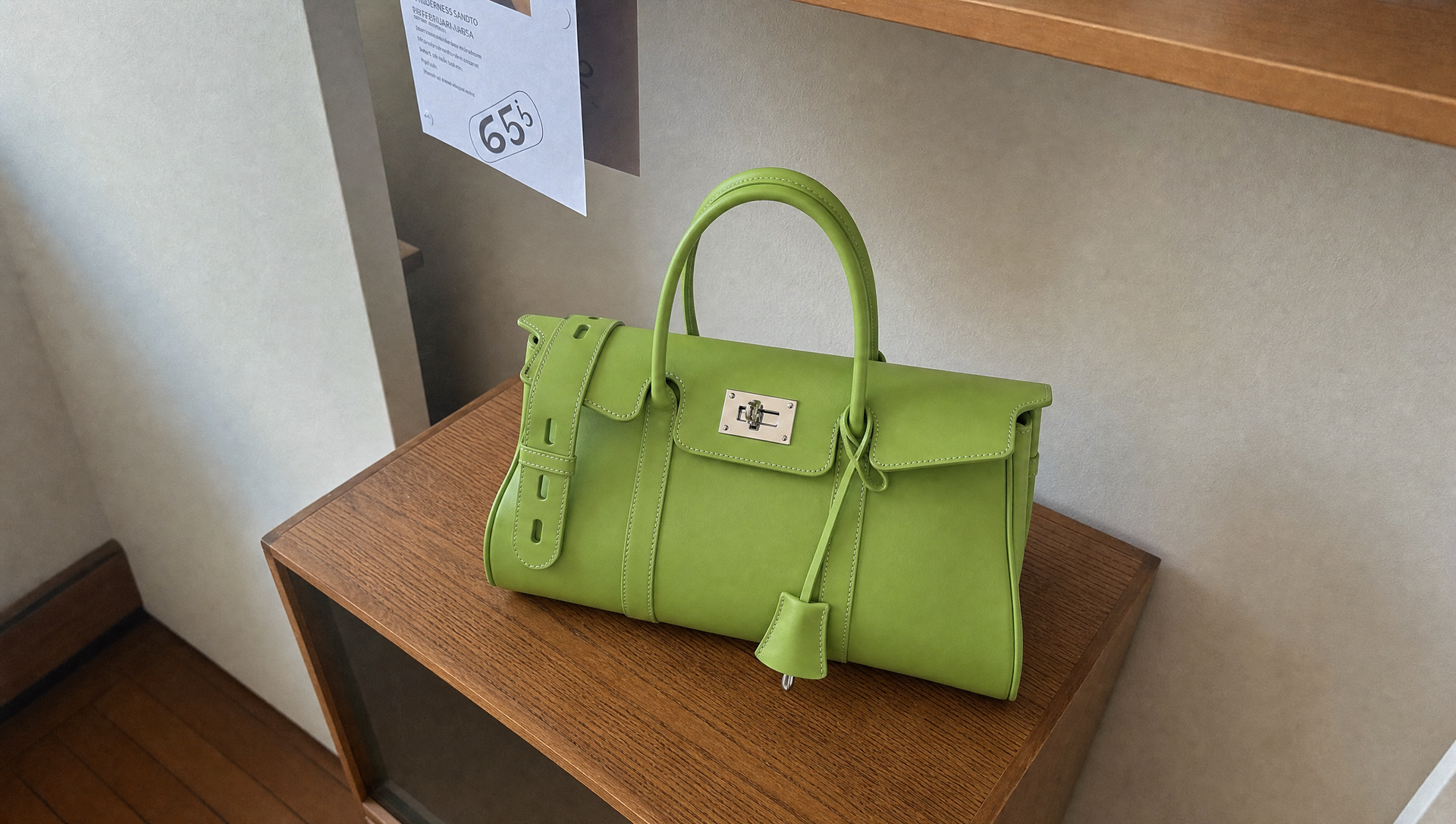
A product photo upscaler can enlarge a small supplier image for an ecommerce listing or product catalog. Review the result before publishing, especially around labels, logos, and product textures.
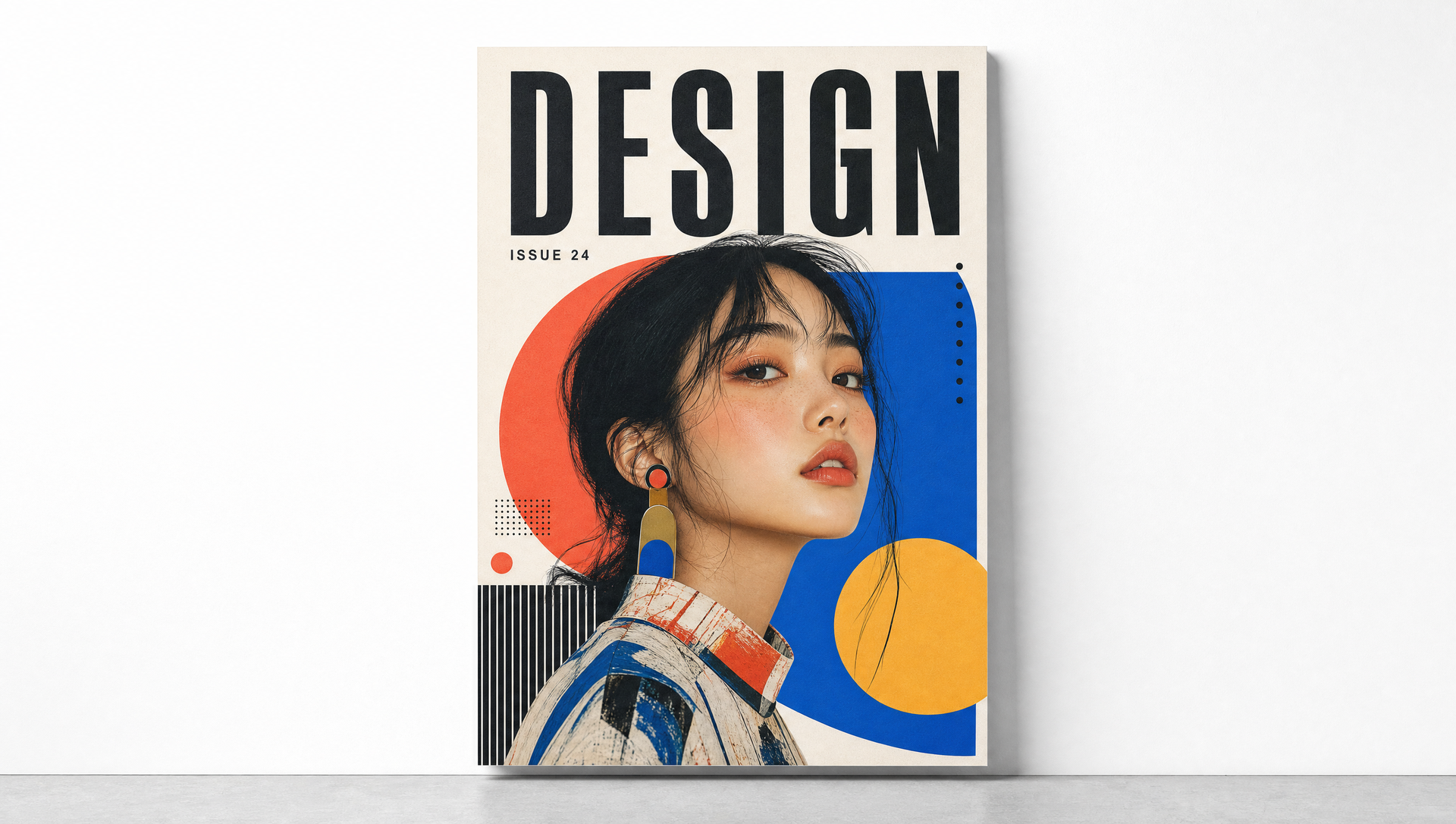
Use an AI image enlarger to prepare a small asset for a poster, banner, or packaging mockup. ByteDance supports 2K or 4K output; Topaz uses scale factors available for the source. Check the image at its intended size before sending it to print.
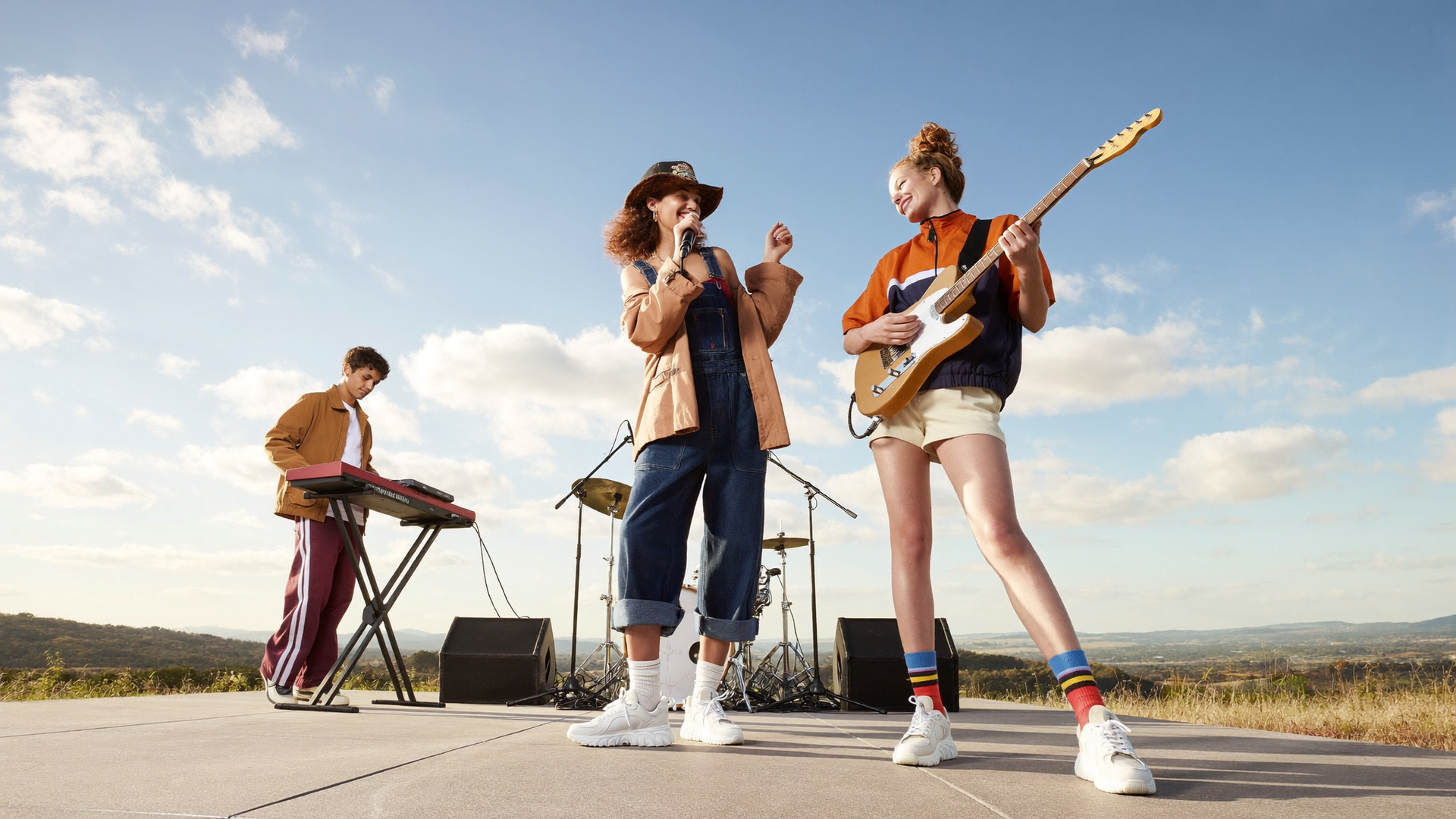
Creators and social teams can increase image resolution for thumbnails, profile photos, blog graphics, or posts that look soft at their intended display size. Check the result in its final placement to see whether it suits the platform.
Join a global creative network where people generate and upscale AI images, share insights, and inspire each other every day.
Answers about upscaling images with our AI image upscaler.