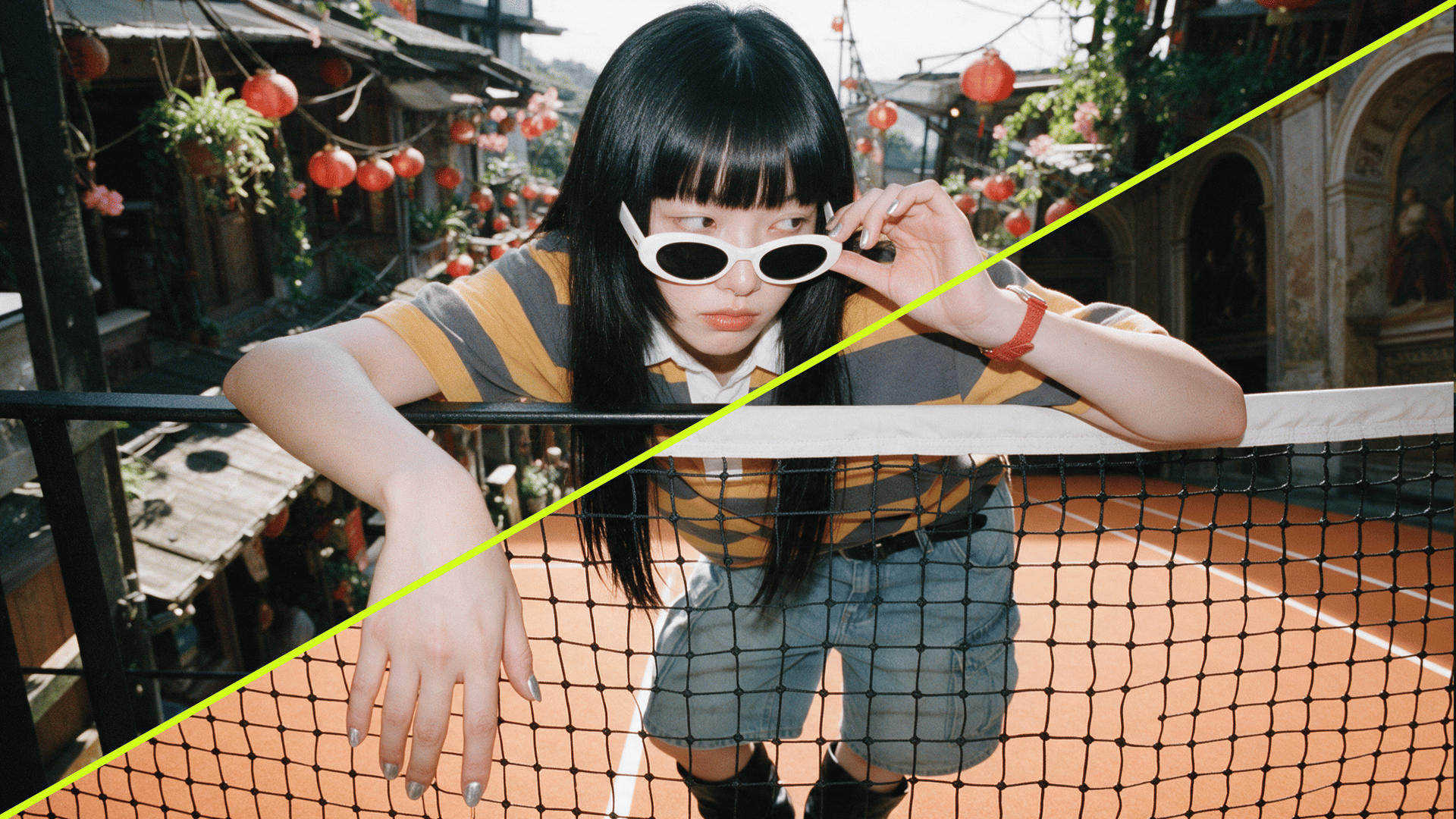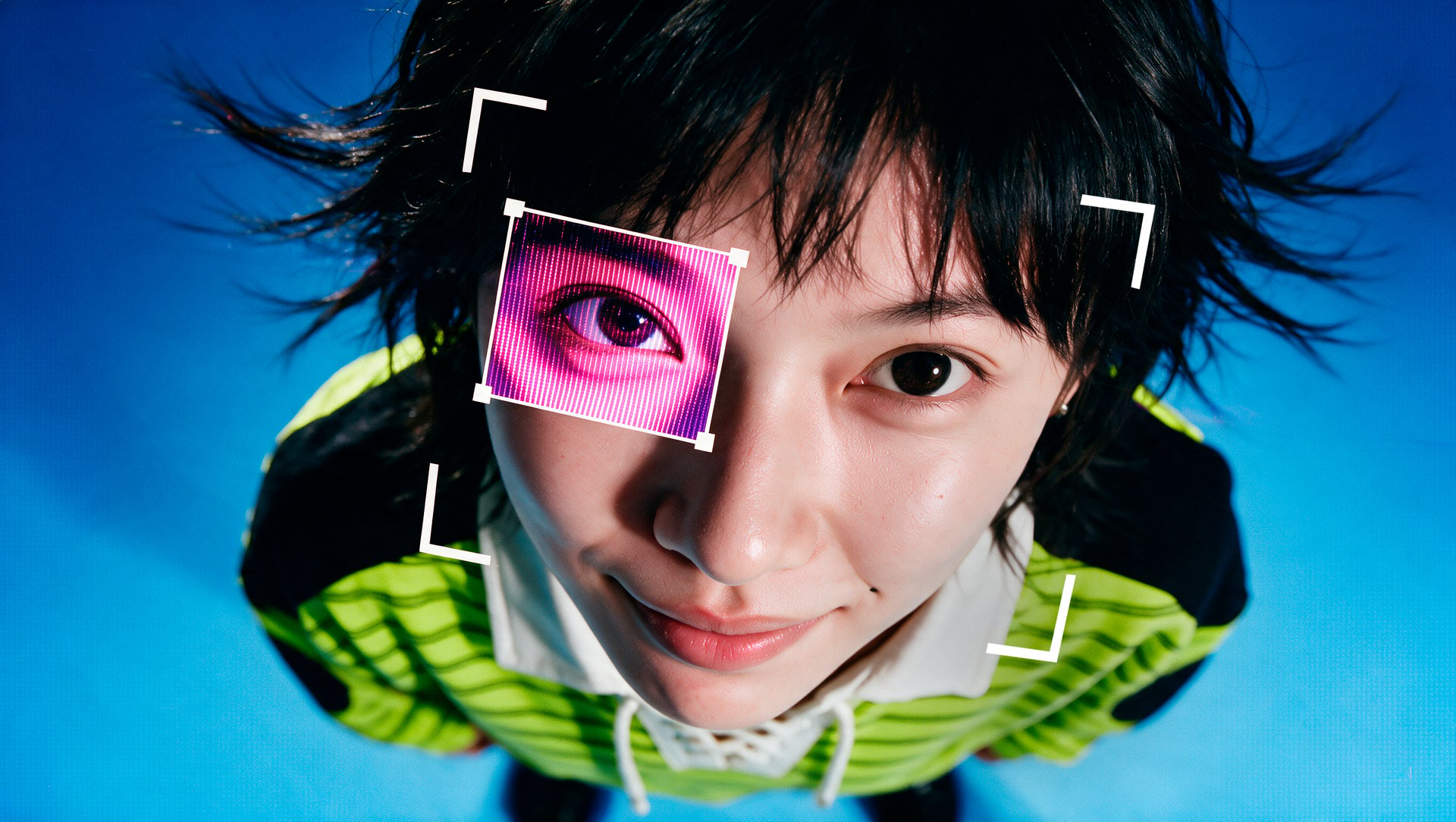
To face swap with AI, upload the target photo or video, add a clear reference photo of the face you want to insert, and generate. Use a character swap for a broader change to the person. Get permission from each person whose likeness you use and make sure you have the rights to edit the source media.
Key Takeaways
- A face swap needs two files, a target photo or video and a face reference, plus permission from each person whose likeness you use and the rights to edit and use the source media.
- Higgsfield Face Swap processes one face per generation, so a photo or video with several people needs a clear way to pick the target person.
- Higgsfield’s video face swap runs on Genjutsu Objects swap, which takes a 4- to 30-second clip and up to 30 reference images.
- Common causes of unnatural results include a different head angle or lighting in the reference and the target, a filtered face, and an object crossing the face.
What Is the Difference Between a Face Swap and a Character Swap?
A face swap replaces facial identity while aiming to preserve the target’s pose, outfit, setting, and motion. A character swap changes the person more broadly. Choose the workflow according to what you want to replace: the face, the whole person, or the scene around a recorded movement.
Your Goal | What Changes | What Stays | Workflow | Example on Higgsfield AI |
|---|---|---|---|---|
Put a face into a photo | The face | Pose, outfit, background | Photo face swap | Face Swap → Image |
Put a face into existing footage | The face, sometimes with the hair | Body, outfit, scene, motion, audio | Video face swap | Face Swap → Video (Genjutsu Objects swap) |
Replace a person in a photo | The person’s identity beyond the face | The target’s pose, clothing, and scene | Character swap | Character Swap 2.0 |
Replace a person in a video | The selected person | The rest of the shot, motion, and timing | Character replacement | Genjutsu Objects swap with full-body references |
Rebuild a video around its movement | Characters, setting, or style | Movement, camera, and timing | Motion transfer | Genjutsu Motion transfer |
Higgsfield is a generative platform for creative production, with 35+ frontier models for generating images and turning them into video scenes, and the last column shows where each workflow sits on Higgsfield. The “What Stays” column describes the goal of each workflow. Compare every output with the original, because small details outside the face sometimes shift. To compare face swap services, see our guide to the best AI face swap tools.
What Do You Need Before Swapping a Face?
A face swap needs two files and permission. The target is the photo or video with the face you want to replace. The reference is a clear photo of the face you want to insert. In the Image tab of Higgsfield Face Swap, the target goes in Target Image and the reference goes in Your Photo. You also need permission from each person whose likeness you use and the rights to edit and use the source media.
Input | What to Prepare | What to Check |
|---|---|---|
Target photo or video | The scene with the face you want to replace | The face is visible, large enough to inspect, and not blurred or covered. For video on Higgsfield, one continuous shot of 4 to 30 seconds |
Face reference | A clear photo of yourself or a consenting adult | The face is sharp and unfiltered, with even light and a head angle close to the target |
Permission | Consent from each person whose likeness you use, plus rights to the source media | It covers this edit and the place where the result will appear |
Start with a single-person target: it makes the first result easier to judge. Use original files rather than screenshots or compressed copies. Permission for a private experiment does not automatically cover a public campaign, so record what will change and where the result will be shown. Higgsfield’s Terms of Use require the necessary rights to uploaded media and permission to use other people’s likenesses.
How Do You Face Swap a Photo With AI?
To face swap a photo, upload the scene as the target, upload the new face as the reference, and run the swap. No prompt is needed. On Higgsfield, a photo face swap costs 2 credits as of November 18, 2026, and the button shows the current cost before you generate.
The steps below use Higgsfield Face Swap. In other tools, look for the two inputs that play the same target and reference roles.
Step 1: Open Face Swap and choose Image
Open Higgsfield Face Swap and select the Image tab. Sign in if prompted.
Step 2: Upload the target photo
Add the picture with the face you want to replace to Target Image. The target guides the pose, light, and background of the result, so use a photo you have the rights to, such as a portrait from your own shoot.
Step 3: Add the face reference
Add the face you want to insert to Your Photo. Check that the inputs are not reversed: the reference supplies the face, while the target guides the pose, lighting, and scene.
Step 4: Run the swap
Click Face Swap. Higgsfield Face Swap uses the two images without a written prompt.
Step 5: Review the result at full size
Compare the output with both uploads. Check the eyes, nose, mouth, and jawline, and the edge where the face meets hair, ears, and neck. If something looks wrong, find it in the troubleshooting table below and change one input before the next attempt.
How Do You Face Swap a Video With AI?
To face swap a video, upload a short clip and a clear face photo, generate, and watch the whole result. Unlike animating a still photo, a video face swap aims to keep the recorded motion, timing, and sound. On Higgsfield, video face swap runs on Genjutsu Objects swap, which accepts clips of 4 to 30 seconds and up to 30 reference images.
Step 1: Choose the shot
Trim a copy of your footage to one continuous shot of 4 to 30 seconds where the face is visible for most of the clip. Keep the original file for comparison.
Step 2: Open Face Swap and choose Video
In Face Swap, select the Video tab, then Objects swap. Choose standard Genjutsu for the steps below and set the output quality, which is 720p by default.
Step 3: Upload the clip and the face photo
Add the clip to “Add a reference video to edit” and the face photo to “Add your characters, products, or clothes.” One clear face photo is enough for a face swap.
Step 4: Add a prompt if needed
The Face Swap page does not show a Prompt switch. To say what should change and what should stay, run the swap in Higgsfield Genjutsu: select Objects swap, add the same clip and face photo, and turn on Prompt. Mention attached images with @. A prompt in this format could read: “Replace the woman’s face with the face from @image1. Keep her outfit, the background, and the camera movement.”
Step 5: Generate
Check the cost on the button, which depends on clip length, quality, and model, then click it. The finished clip appears in your Create Video history as Higgsfield Genjutsu - Object Swap.
Step 6: Watch the entire output
Watch once at normal speed, then pause at head turns, blinks, speech, and moments when a hand or object crosses the face. Check whether the face stays the same and whether an edge appears and disappears. Listen to the audio and check lip sync where people speak.
With one face photo and no prompt, Objects swap can change the hair along with the face, while the body, outfit, and original audio stay. If you need the original hairstyle, run the swap in Higgsfield Genjutsu with Prompt turned on, say so in the prompt, and check the result.
Using Genjutsu Lite Instead
Genjutsu Lite is the faster, lower-cost option. It takes clips of 4 to 30 seconds and up to 10 reference images, and it applies the change automatically, without a choice between Motion transfer and Objects swap. Select Genjutsu Lite, upload the clip and the face photo, set the quality, and generate.
To make a new video from a photo of yourself rather than edit existing footage, see How to Put Yourself in an AI Video.
How Do You Replace the Whole Person Instead?
To replace the whole person, give the tool references that show the full appearance, not just a face. For photos, use Character Swap 2.0, which changes the person and keeps the target’s pose, clothing, and scene. For video on Higgsfield, use Genjutsu Objects swap with full-body and outfit references and a prompt that names the person to replace.
Replace a Person in a Video
- Open Higgsfield Genjutsu and select Objects swap.
- Upload the clip, 4 to 30 seconds long.
- Add references of the replacement person: full body, outfit, and hairstyle, up to 30 images.
- Turn on Prompt, name the person to replace, and mention the references with @.
- Generate, then compare the result with the original, including the background and anyone else in the frame.
A prompt for your own approved footage could read: “Replace the adult standing on the left with the person from @image1, wearing the outfit from @image2. Keep the other adult, the room, the camera movement, and the timing unchanged.”
To rebuild the whole scene around a recorded movement, with a new character, location, or style, switch to Motion transfer. It keeps the motion, camera, and timing and rebuilds the rest from your references. Genjutsu is priced by clip length and resolution, and the button shows the cost before you generate. For settings and use cases, see Meet Higgsfield Genjutsu.
Replace a Person in a Photo
For a still image, use Character Swap 2.0. Add the character you want to insert to Your Photo and the photo with the person you want to replace to Target Image, then click Character Swap. Higgsfield describes it as transferring the source character’s identity onto the target’s pose, clothing, and scene, so use a reference that shows the person clearly.
How Do You Make a Face Swap Look Natural?
A face swap looks natural when the reference matches the target in head angle, lighting, and expression, and the face stays sharp and uncovered. Start troubleshooting by checking the reference photo before the settings. Choose the reference to fit the target, then judge the result at the size people will see it.
- Match the head angle. Use a three-quarter reference for a three-quarter target and a front-facing reference for a front-facing target.
- Match the light. Use a reference lit from the same side as the target, with soft, even light and no strong light from behind.
- Use an unedited, recent photo. Beauty filters and skin smoothing remove the detail the model needs, and older photos can make the result look like an earlier version of the person.
- Keep the face uncovered. Sunglasses, masks, hats that shade the eyes, and hands in front of the face hide features.
- Keep the expression natural. A wide-open mouth or a tight squint in the reference is harder to fit into a target where the face is relaxed.
- Check the surroundings. Look at the hairline, ears, collar, and glasses as well as the face.
When something looks wrong, change one input at a time. For example, keep the target fixed and replace a filtered selfie with an unedited photo, then compare the two results.
Why Does My Face Swap Look Fake, and How Do I Fix It?
A face swap looks fake when the new face does not fit the target’s angle, light, or detail, or, in video, changes between frames. Start from the visible defect, check the inputs first, and compare each new result with the same original.
Problem | What to Check | What to Try |
|---|---|---|
The result barely resembles the reference | A small, blurred, or filtered reference | Use a sharp, unedited photo with the whole face visible |
The face looks stretched or misaligned | A large difference in head angle | Use a reference closer to the target’s pose |
A color edge surrounds the face | Different light or color temperature | Use a reference with similar lighting, then check the neck and ears |
Glasses, hair, or a hand look broken | An object overlaps the face | Use a target where the face is clear, or repair the area in an editor |
The face flickers or changes during movement | A head turn or object at that moment | Trim to a part with slower movement, use a reference closer to that angle, and watch the result at normal speed |
The hairstyle changed in a video swap | Objects swap also changed the hair | In Higgsfield Genjutsu, turn on Prompt, ask to keep the original hairstyle, and compare |
The wrong person changed | Several faces in the frame | In video, use Higgsfield Genjutsu with Prompt turned on and try naming the person. In photos, use a single-person shot or crop |
The outfit or body is still wrong | The change goes beyond the face | In video, switch to Genjutsu Objects swap with full-body and outfit references. In photos, Character Swap 2.0 keeps the target’s clothing, so choose a target photo with the outfit you want |
Keep manual repair as a separate editing step. A photo repair affects one image, while a video repair has to follow the person through every frame.
How Do You Swap More Than One Face in the Same Shot?
Swap one face at a time. Higgsfield Face Swap processes one face per generation, so a shot with several people needs a clear way to pick the target. Do not assume the tool will choose the person you want because that person is larger or closer to the camera.
- Photos. Use a single-person shot, or crop the photo to the person you want to change.
- Video. In Higgsfield Genjutsu, select Objects swap, turn on Prompt, and try naming the person by position or clothing, for example “the man in the red jacket on the left.” Then mention the reference with @. Check every face in the result.
- Group shots that must stay intact. Edit the change by hand in a photo or video editor. In video, the edited area has to follow the person in every frame.
After each edit, compare every face with the original, including the people you meant to leave unchanged.
How Do You Use Face Swap Responsibly?
Use only your own face or the face of an adult who has agreed to the specific use, and label realistic swaps when you publish them..
- Get consent for the specific use. Record what will change and where the result will appear. Do not use faces of children, public figures, or strangers whose photos you found online.
- Label realistic swaps. YouTube requires creators to disclose realistic altered or synthetic content when they upload it.
- Never create intimate content of a real person. Higgsfield prohibits deceptive, harmful, and non-consensual intimate content.
- Keep the originals and consent records. Do not present a swap as real footage of an event.
This section is general information, not legal advice. Rules differ by country and platform.
Which Face Swap Method Should You Use?
Use a face swap when only the face should change, a character swap when the whole person should change, and Motion transfer when the scene should change around the same movement. Every method starts with a clear reference, a suitable target, and permission for the intended use.
- Only the face: a photo or video face swap, such as Higgsfield Face Swap, with clips of 4 to 30 seconds for video.
- The whole person or the scene: a character swap for photos, Objects swap with full-body references for video, or Motion transfer to rebuild the scene around the same movement.
- Before you post: review the full output, then check consent and the disclosure rules for where you publish.