Creator Hub
Back

How to Create TikTok Shop Product Videos With AI

Higgsfield
10 min

To create a TikTok Shop product video with AI, prepare a product photo, verified product details, and one buyer question. Generate and refine a vertical clip, check it against the listing, then add the required disclosures and product link before publishing. Use TikTok’s AI Video Maker or an external tool such as Higgsfield.

Key Takeaways

  • TikTok Shop allows AI-generated product videos that follow its content, quality and category rules.
  • In Higgsfield Marketing Studio, you create the video by selecting Video, choosing a style, setting Aspect ratio to 9:16 and adding your product photo under Product.
  • TikTok Shop treats AI that changes a product’s size, color, shape, features or performance as “product not as described.”
  • TikTok Shop’s Health guide and Beauty & Personal Care guide do not allow AI-generated content to show a product’s core effects.
  • Before you publish in the TikTok app, add the product link, turn on Disclose commercial content and disclose AI use, for example with the “AI-generated content” toggle.

Can You Use AI to Create TikTok Shop Product Videos?

TikTok Shop allows AI-generated product videos that comply with its content, quality, and category-specific rules. Accurate product representation and appropriate AI disclosure are required, but do not guarantee compliance on their own. Step 3 below covers what to check before you post.

There are two common ways to make the video:

  • TikTok’s AI Video Maker. AI Video Maker sits in Seller Center under Content hub → Smart video → Video maker and is available to eligible sellers. You select a product from your shop, add product images or clips and choose between “Mix of real and AI footage” and “Full AI generation.”
  • An external tool such as Higgsfield. Use this route when you want to write the scene yourself and choose the presenter. You download the finished video and upload it to TikTok like any other file.

This guide follows the second route, from a product photo to a published video with a product link.

What Do You Need Before You Start?

Prepare the following before you start: a product photo, the product’s real specs, one buyer question, a TikTok account that can link products from your shop and the rights to everything you put in the video.

  • A product photo. Shoot the product from the front on a plain background, with every word on the label sharp. In Higgsfield Marketing Studio, the Product Link tool can also build a video ad from a link to your product page; if the page does not extract correctly, upload product photos instead.
  • The product’s real specs. Copy size or volume, color, material, quantity and what comes in the box from your product detail page. These are the details you will compare the video against in Step 3.
  • One buyer question. Pick the single question a buyer asks before purchase, such as “How do I use it?” or “Will it fit?”, and the one fact from the listing that answers it.
  • A TikTok account that can link your products. Use a TikTok account linked to your shop and enabled to add product links.
  • Rights to what you use. Use photos you own or have permission to use. Obtain permission before using another person’s likeness or voice.

Step 1: Write a Script Around One Buyer Question

Build each TikTok Shop product video around one question a buyer has before purchase. Write the question first, then plan each part of the video around the product fact that answers it, and only then turn the plan into a prompt.

A simple script has four parts:

Step 1: Write a Script Around One Buyer Question

Part

What it shows

Where the content comes from

Hook

The buyer’s question, said by the presenter or shown as on-screen text

Comments, reviews or questions buyers ask about the product

Answer

The product in use, answering the question

The product photo and how the product works in everyday use

Detail

One spec that backs the answer, such as size, volume or what is in the box

The product detail page

Call to action

A line that points to the product link, such as “Tap the product below”

Your shop

Keep on-screen text in sync with what the presenter says: TikTok Shop’s quality requirements ask for on-screen text that matches the dialogue and is easy to read. Any price, discount or availability claim must match the current listing.

Step 2: Create the Video in Higgsfield

In Higgsfield Marketing Studio, switch to Video, choose a style, set a vertical aspect ratio, describe the scene, attach the product photo in the Product field and click Generate. The exact credit cost shows on the Generate button before you confirm.

Higgsfield is a generative platform for creative production, with 35+ frontier models for generating images and turning them into video scenes. Marketing Studio is its workspace for ads, product creative and creator-style (UGC) videos.

  1. Open Marketing Studio and select Video.
  2. Click the style button next to the + icon. It shows the name of the current style, for example Hypermotion. The Choose style window opens. Under Video, open UGC, Motion or TikTok and pick the style.
  3. Set Aspect ratio and the duration.
  4. In the prompt field, describe the scene from your script: who holds the product, what they do with it and what they say. 
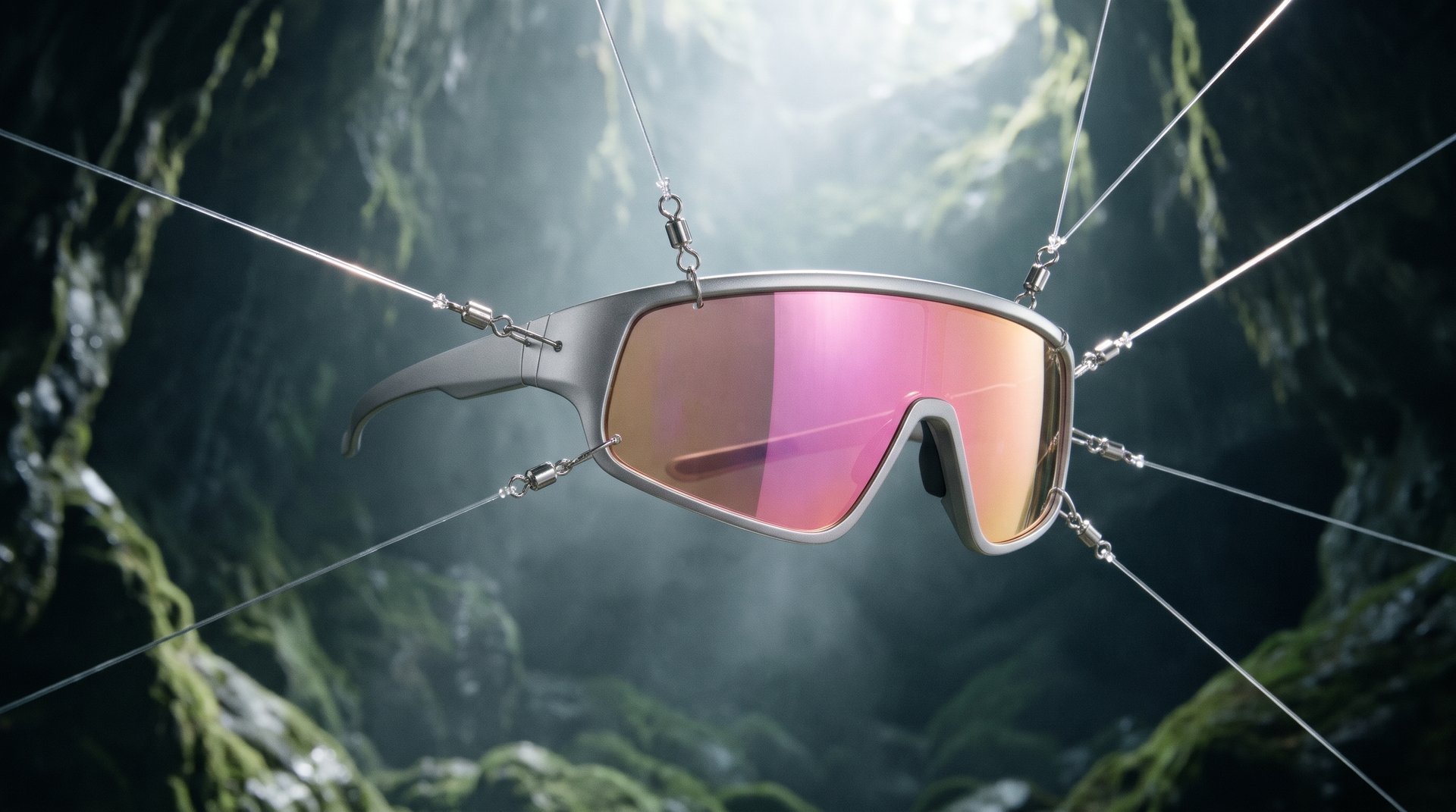
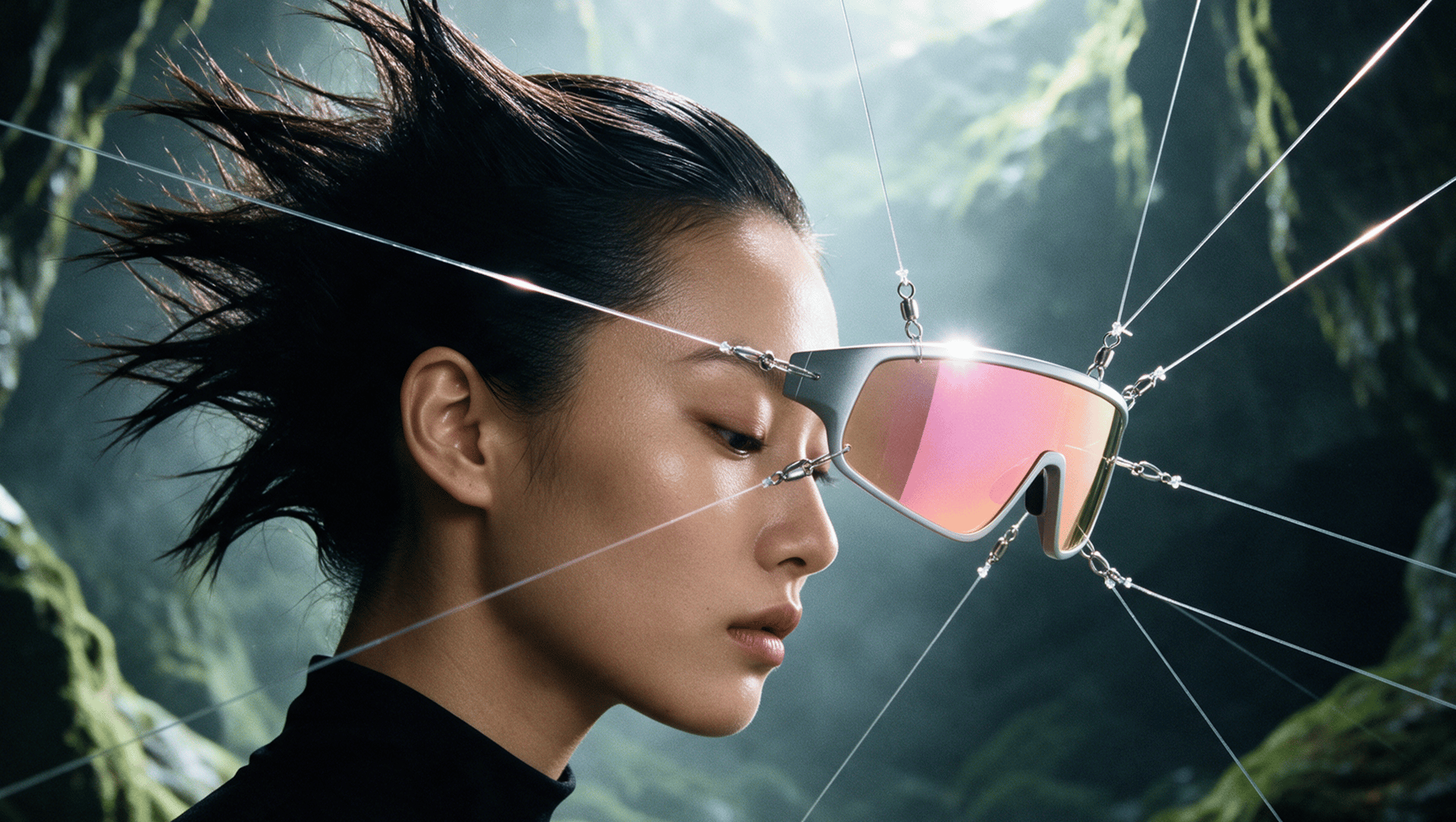
SUSPENDED: a slow, hushed 15-second product film for full-rim shield sport sunglasses, shot inside a misty mossy cave. PRODUCT: exactly the sunglasses from the product image: one continuous matte silver full rim around a single pink-to-orange iridescent mirrored shield lens, sleek matte silver temple arms, small polished chrome swivel clips on the frame, plain, no logos. The glasses never change shape, color or proportions. WORLD: a huge cave, dark wet rock walls with green moss, a misty beam of daylight falling from an opening high above. The glasses hang in midair inside the beam, held by many clear monofilament fishing lines pulled taut in straight lines to the edges of the frame; every line glints silver along its full length. SHOT 1 (0.0s to 3.0s): extreme macro, slow dolly along one taut fishing line; a bright glint travels down the line and stops on a chrome swivel clip; mist drifts through shallow focus. SHOT 2 (3.0s to 6.0s): macro slide across the mirrored lens; the reflection rolls from pink to orange as the camera passes; one water droplet slides along the top of the matte silver rim and falls. SHOT 3 (6.0s to 10.0s): medium shot, the glasses centered in the beam of light inside the web of glowing lines; a very slow 30-degree orbit; the glasses turn a few degrees as the lines tighten; mist moves through the beam. SHOT 4 (10.0s to 15.0s): slow push-in to a frontal hero shot; the glasses settle perfectly still, the beam brightens and a soft pink-orange flare blooms across the lens; hold on the final frame. LIGHT AND LOOK: soft cool studio key light from above right, crisp highlights on the rim, real materials, medium-format look, natural colors: moss green, wet black rock, silver, one pink-orange accent. Slow, calm pacing, gentle cuts. SOUND: cave ambience: slow water drips, low wind, a faint metallic hum of taut lines, a soft ambient synth pad; no voice-over. No on-screen text, no captions and no logos anywhere.

  5.  Click Product. The panel opens on the Products tab. Click Add product and choose your product photo. You can also click Upload from link. The Add your product window opens, where you paste a link to your product page or click Create manually. The product photo guides the product’s appearance, so compare the generated result with the original. 

   6.  If the style uses a presenter, click Avatar and pick one from the gallery or use one of your own avatars (see how avatars work in our AI UGC video guide).

   7.   Check the settings and the credit cost on the Generate button, then click Generate.

To make a video for your own product, use the prompt structure as a starting point, then adapt the product facts, action, and buyer question to your listing. Reuse the same avatar across variations, then check its appearance in each result.

Three More Tasks for Different Buyer Questions

Each task below answers a different question a buyer asks before purchase, rather than placing the same product in a new background. These are prompt templates for your own product; we did not generate them for this guide. Replace the words in square brackets with facts from your listing.

Three More Tasks for Different Buyer Questions

Buyer question

What the video shows

Prompt template

“How do I use it?”

The presenter goes through the product’s main use, step by step

“A woman in a bright kitchen shows how to use [product]: she [first action], then [second action]. She explains each step to the camera. Handheld camera.”

“Will it fit?”

The product in the place it is meant for, next to everyday objects

“A man places [product] into [bag, shelf or car holder] and shows it fits, then says its size: [size from listing]. Close-up, handheld camera.”

“What do I get?”

Everything in the box, laid out and named

“A presenter opens the box of [product] on a table and takes out each item: [items from listing]. She names each one to the camera. Top-down shot, then a close-up.”

Step 3: Check the Video Against the Product Listing

Before you post, compare the video with your product detail page: the product must look and work as the listing describes and come with the same items. TikTok Shop treats AI that changes the product’s size, color, shape, features or performance as misleading and lists it as “product not as described.”

The checklist below combines TikTok Shop’s AI-generated content policy (updated September 2, 2026) and its Requirements for High-Quality Videos and LIVEs (updated November 6, 2026):

Step 3: Check the Video Against the Product Listing

Check

What to compare

Appearance

Size, color, material and shape match the photo and the listing

Quantity and bundle

The number of items and every accessory match what the buyer receives

Performance

Every effect shown is supported by the product, its instructions or test results; AI does not show features the real product lacks

Timing

Results such as cleaning, growing or installing take a realistic amount of time

Claims

Compatibility, safety and certification claims are verified; price and discount match the listing

Product display

AI does not replace or fabricate the product in a way that misleads buyers, animate it unrealistically or turn a flat product into a rotating 3D object

Motion

At least 3 seconds of dynamic content; no still, looping or scrolling images through the entire video without the creator’s face and the physical product

Label and text

The product label is readable, and on-screen text matches what the presenter says

Category-specific restrictions also apply. TikTok Shop updated its Health guide and its Beauty & Personal Care guide on November 4, 2026. TikTok Shop’s Health guide does not allow AI-generated content to show a health product’s core effects. Its Beauty & Personal Care guide does not allow AI before-and-after visuals or AI avatars that demonstrate a product’s core effect, such as makeup results that depend on skin tone and face shape. Review the guide for your category before choosing your scene.

Remove or correct inaccurate shots. If you regenerate a clip, check the new result against the listing again. Online jeweler Brilliance works the same way with its Higgsfield imagery: if a facet, a prong or the ring’s taper does not match the physical piece, the team regenerates the image.

Step 4: Add Disclosures and Link the Product When You Post

Product links are added in TikTok, not in Higgsfield, so download the finished video and post it from the TikTok app. Before you publish, add the product link, turn on the commercial content disclosure and apply the AI disclosure.

  1. Run a quality check (optional). Sellers with at least one sale on TikTok Shop can run a pre-check: in Seller Center, go to Content hub → Management → Quality check → Upload. Upload the video, link the product, click Check quality and review the results. Passing pre-check does not guarantee compliance after publication.
  2. Upload the video. In the TikTok app, tap the Post (+) button and upload the file.
  3. Link the product. On the posting page, tap Add link, choose Product, select the item from your shop and edit the product name buyers see.
  4. Disclose commercial content. Open Content disclosure and ads and turn on Disclose commercial content. Then select the option that matches your relationship with the brand. Select Your brand for your own products. Select Branded content for a paid partnership with another brand.
  5. Apply the AI disclosure. In the post settings, turn on the “AI-generated content” toggle, or state AI use in on-screen text or the description. With the toggle on, the video shows “Disclosed by creator as AI-generated.” TikTok’s general AI rules outside Shop are in our guide to AI content for TikTok.
  6. Preview and post. Check that the product link appears in the lower-left corner of the video, then publish.

From a computer, sellers can upload through Seller Center → Content hub → Post on TikTok → Video, which opens Upload a shoppable video.

After the video goes live, Seller Center → Content hub → Management → Posts shows each video’s status (Violations, To be improved) and metrics such as GMV (gross merchandise value), Product clicks and Video CTR.

How to Create TikTok Shop Product Videos With AI

Try Marketing Studio

Got any questions left?

by Higgsfield