Nano Banana Pro Inpaint is a next-generation AI editing model built on top of Nano Banana Pro’s powerful reasoning engine. But unlike standard generative models, this tool is designed for one specific purpose:
You paint over any object - and the model transforms only what you highlighted, with absolute precision.
You can:
All by simply brushing (masking) exactly the part of the image you want to change.
Nano Banana Pro Inpaint is a smart, structure-preserving editing engine capable of interpreting context, geometry, and logic inside your image - so your edits blend seamlessly into the original photograph.
This guide explains exactly how it works, how to get the cleanest results, and why the “paint-to-edit” workflow powered by Nano Banana Pro has become one of the most accurate AI editing systems in 2025.
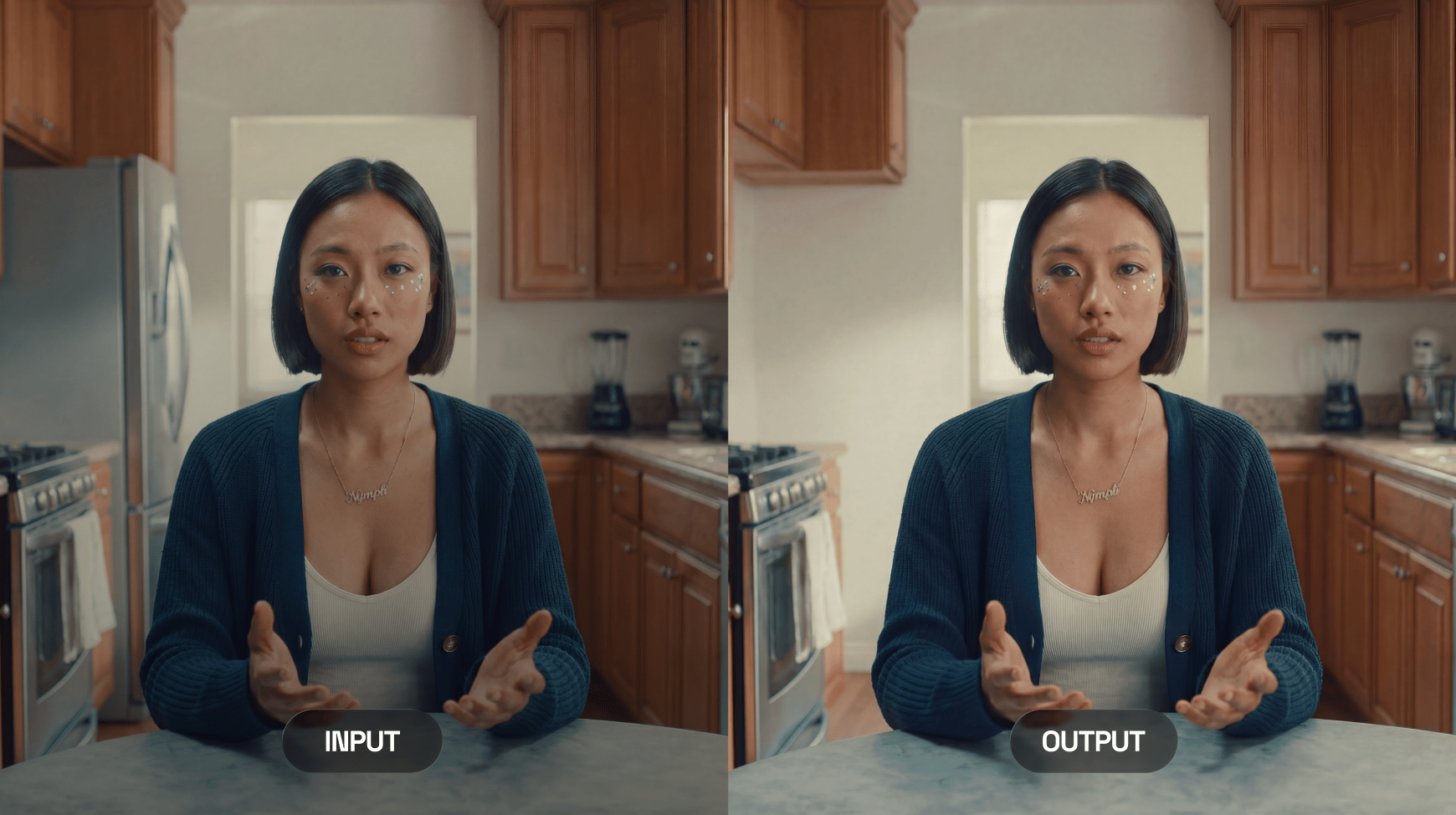
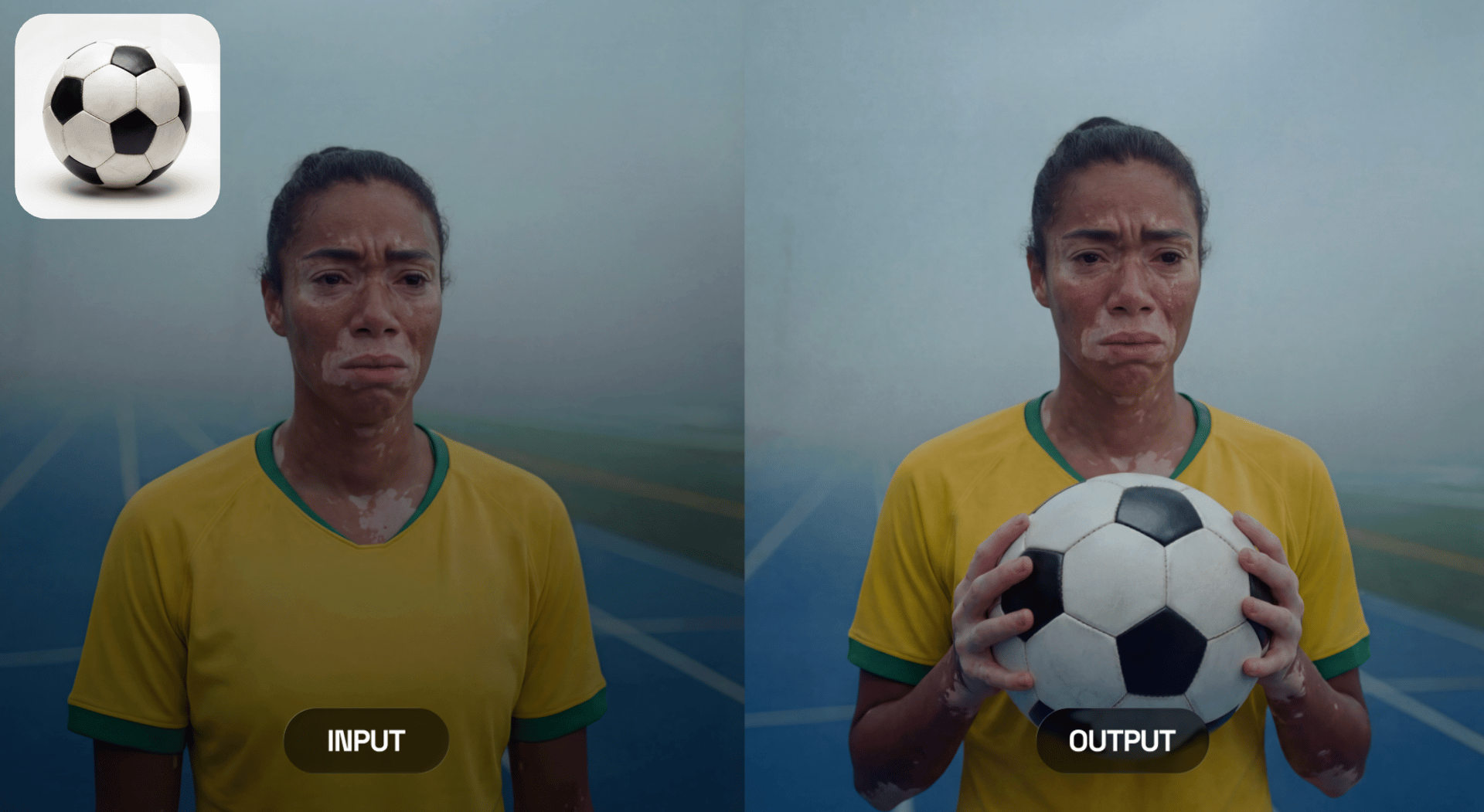
Notice what was removed here?
At its core, the model does one thing better than anyone else:
You paint & The model understands what should change
The moment you apply a mask in Higgsfield, Nano Banana Pro Inpaint treats it as a logical editing zone .
It can:
remove what’s inside
rebuild the background
replace the object entirely
modify it according to your prompt
preserve all unmasked areas with zero distortions
This creates a surgical editing workflow - you control where and the model handles how .
Powered by Nano Banana Pro’s reasoning engine Because it runs on Nano Banana Pro’s logic core, the model understands:
structure
proportions
lighting
materials
text
identity
perspective
continuity
This is why edits feel real, natural, and seamlessly integrated.
A. Object Removal Paint over anything unwanted and the model intelligently reconstructs the missing area.
B. Object Replacement Replace masked content with anything you describe .
C. Clothing Restyle Highlight a jacket → transform it into leather, denim, or a new color.
D. Text Editing & Label Fixing Mask a sign or label → rewrite it cleanly and in perspective.
E. Lighting Corrections Paint an area → instruct the model to “add warm light,” “soften shadows,” etc.
F. Facial Fixing Mask blemishes, artifacts, distortions → model repairs them naturally.
G. Background Repair Fix broken textures, rebuild walls, or extend patterns.
H. Add New Objects Mask an empty area → “add a red apple,” “add a neon sign,” etc.
It is the most flexible inpainting model on Higgsfield.
How the “Paint-to-Edit” Mechanism Works? When you brush over an area, Nano Banana Pro Inpaint performs a 4-step reasoning sequence:
1. Identify what is inside the masked region Shape, edges, geometry, texture.
2. Understand what should remain untouched Everything outside the mask is protected with pixel-level precision.
3. Interpret your prompt Replace, remove, alter, stylize - instruct the model.
4. Rebuild the masked region The model fills it with new content that:
matches lighting
matches color palette
matches camera optics
preserves perspective
blends smoothly
Subtle or major professional changes are now made within on tools for any ideas.
Step 1 - Upload Your Image Go to Higgsfield → Edit → Nano Banana Pro Inpaint
Upload any image, portrait, product shot, or scene.
Step 2 - Paint the Area You Want to Change Use the mask brush to highlight the exact object or region.
Tips:
The mask defines the editing zone.
Step 3 - Write Your Prompt Examples:
Removal:
“Remove the person and reconstruct the wall behind them.”
Replacement:
“Turn the T-shirt into a black leather jacket.”
Object addition:
“Add a golden watch to the wrist.”
Face fix:
“Smooth skin naturally, remove blemishes, keep identity.”
Lighting change:
“Add warm sunset lighting on the masked area.”
Nano Banana Pro Inpaint understands these instructions extremely well.
Step 4 - Choose Output Quality For commercial content, always choose High .
Step 5 - Generate The model processes your mask + prompt and returns:
The result is typically so seamless that it's impossible to tell something was edited.
5. Best Practices for Flawless Results 1. Mask only what matters More precision = better control.
2. Use clear instructions The model obeys structured prompts extremely well.
3. Match lighting Include notes like:
“Same lighting,”
“Match original shadows.”
4. Iterate in small steps Complex edits work best in layers.
5. Avoid over-masking faces Mask only the area needing correction.
Here’s why users prefer it over older or simpler models:
Superior reasoning It understands:
Seamless blending No visible boundaries & mismatched colors.
Precise structural memory Walls stay straight, patterns stay aligned, fingers stay anatomically correct.
Text accuracy Signs, labels, UI mockups - the model rewrites text cleanly.
Identity preservation Faces remain the same unless instructed otherwise.
Zero hallucination NBP Inpaint sticks to your instructions - nothing extra appears.
Nano Banana Pro Inpaint Is Perfect For: Photographers Retouching, object cleanup, background fixing.
E-commerce sellers Label edits, product cleanup, color changes.
Designers Mockups, packaging edits, print-ready fixes.
Marketing teams Perfect visuals for ads and campaigns.
Influencers Photo polishing without losing natural look.
Content creators Creative transformations, prop additions, stylized edits.
Nano Banana Pro Inpaint turns tedious Photoshop tasks into fast, AI-powered precision edits .
Why Nano Banana Pro Inpaint Is One of The Best Image Editing Tools in 2025 The inpainting field used to be unreliable - blurry fills, strange textures, warped anatomy.
Nano Banana Pro Inpaint finally fixes this by combining:
For many creators, it becomes the default editing engine on Higgsfield - fast, predictable, and shockingly accurate.